How to Connect to Windows Server with Remote Desktop
Connecting to a Windows VPS from a mobile device becomes critical in urgent situations where quick access to server resources is needed. This guide explains how to use Remote Desktop to securely connect from a smartphone.
خلاصه تخصصی مقاله
Connecting to a Windows VPS from a mobile device becomes critical in urgent situations where quick access to server resources is needed. This guide explains how to use Remote Desktop to securely connect from a smartphone.
موضوعات اصلی: Desktop، connect، server، Remote، you، VPS
Connecting to a Windows virtual server from a mobile device becomes important in urgent situations where quick access to resources is needed. In such cases, not having a computer or laptop should not prevent you; all you need is a smartphone.
The Remote Desktop protocol, developed by Microsoft, allows you to connect two devices regardless of device type. Using a smartphone or tablet provides a convenient user experience.
Combining these technologies lets you connect to your Windows virtual server with a few taps. This guide walks you through how to connect to a Windows VPS from your phone.
Navigating to Windows VPS with Remote Desktop
Connecting to a Windows VPS via Remote Desktop is a simple and fast process. The essential steps are explained below.
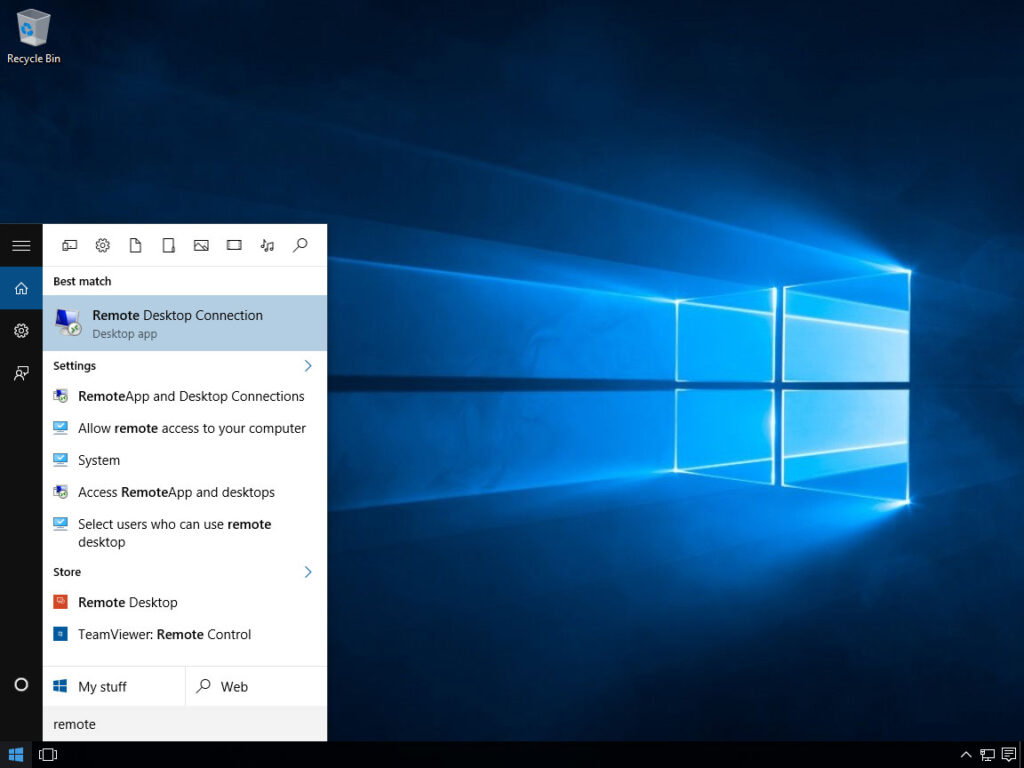
From the Windows Start menu, search for Remote Desktop.
Click and run Remote Desktop Connection. Note: This utility is included by default in all Windows editions and does not require separate installation.
After launching the app, in the Computer field enter your IP address.
Click Connect to start the connection process.
Note: The port should be entered after the colon in the IP address.
A window appears to enter your username and password. Choose More Choices and Use a different account.
In the Username field, enter administrator.
In the Password field, enter the server password that was sent in the ticket, then click OK.
Note: Enabling Remember me allows you to skip retyping the password in future sessions.
You may see a yellow warning about the security certificate. To prevent this warning in future connections, enable the option Don’t ask me again.
Click Yes to connect.
After completing the steps above, you will access the virtual server’s desktop. You can now install and run the required software and manage files on the server.
- Read more: How to enable Remote Desktop?
Connecting to a Windows VPS from an Android mobile device
Connecting to a Windows VPS via Android or iOS is possible. This uses the Remote Desktop Protocol (RDP). Below are the detailed steps for Android.
Step 1 – Download and install the RDP app
First install the Remote Desktop app on your device. Use a reputable app store to download Microsoft Remote Desktop.
Step 2 – Open the app
After installation, open the app. On the main screen, look for the add option to set up a new connection.
Step 3 – Add the server
Tap Add PC. Enter the virtual server IP address in the PC Name field.
Step 4 – Save account information
To set up the user account, select Add User Account. In the Username field, enter administrator. In the Password field, enter your server password. Then Save to save the account. Also use Save at the top to save all information.
Step 5 – Accept terms and connect
When connecting to the VPS for the first time, you will see a prompt detailing the connection terms. Choose Never Ask Again and then Connect.
- If a security warning appears, select Continue.
Connecting to Windows VPS from an iOS device
For iOS, use the Microsoft Remote Desktop app. Follow these steps:
Step 1 – Download from the App Store
Download Microsoft Remote Desktop from the App Store.
Step 2 – Install the app
The app installs automatically and its icon appears on the home screen.
Step 3 – Setup and initial configuration
To add a new connection, tap the plus sign and choose Add PC.
Step 4 – Enter server information
Enter the required server information: PC Name (IP or DNS name), User Account (username and password). You can decide whether to save credentials and adjust display and sound settings as needed.
Step 5 – Connect to the server
After entering the information, tap Save or Add to add to the list of connections. To connect, tap the server name. If a certificate warning appears, tap Continue.
Step 6 – Use the virtual server
Once connected, the server desktop appears and you can access and work on the server from your iPhone.
- Read more: Full guide to removing Remote Desktop limits for increased accessibility
جمعبندی
This guide covered connecting to a Windows VPS from mobile devices. It explained the main steps for Android and iOS. Using the Remote Desktop app, users can easily and quickly access their virtual servers and use their features.
This process is especially valuable when computer access is not available, enabling administrative and operational tasks to be carried out remotely.
سوالات متداول
What app do I need to connect to a Windows VPS from mobile?
To connect to a Windows VPS from a mobile device, you need the Microsoft Remote Desktop app. It is available for Android and iOS and helps you connect to your VPS easily.
Is it possible to connect to a Windows VPS from a MacBook?
Yes, you can use Microsoft Remote Desktop on macOS to connect to your server.
Why can’t I connect to the VPS?
Possible reasons include incorrect login details (IP address, username or password), internet connectivity issues, or firewall/security settings on the server blocking the connection.
- Incorrect login information (IP address, username or password)
- Internet connectivity issues
- Firewall or security settings on the server that may block the connection
Is my data secure when connecting to the VPS?
Yes, security is a priority. RDP connections are usually encrypted, but using strong firewalls and two-factor authentication is recommended.
Do I need special software to connect to the VPS?
Yes, you need Microsoft Remote Desktop or similar software to securely connect to your virtual server.
For evaluating the stability, security, and maintenance of this infrastructure, also consult the network support guide.
برای ارزیابی پایداری، امنیت و نگهداری این زیرساخت، راهنمای پشتیبانی شبکه را نیز مطالعه کنید.