Practical Guide to Enabling and Securing Remote Desktop
Enabling Remote Desktop provides remote access and control of a computer. This guide covers prerequisites, activation methods across Windows versions, and security considerations to mitigate risks.
خلاصه تخصصی مقاله
Enabling Remote Desktop provides remote access and control of a computer. This guide covers prerequisites, activation methods across Windows versions, and security considerations to mitigate risks.
موضوعات اصلی: Remote، Desktop، firewall، access، control، System
Enabling Remote Desktop allows remote access and control of a computer. This feature is useful for technical support, quick file access, and running applications on remote devices or in distributed work environments; however, security risks exist. This guide covers prerequisites, activation methods across Windows versions, and security practices to mitigate risks.
Prerequisites for Using Remote Desktop
- Compatible OS: The target device and client should run an OS that supports Remote Desktop or equivalent protocols (RDP/VNC).
- Network access: Both devices must be reachable over the network (local network or VPN/Internet) and have an accessible IP address or hostname.
- User account with privileges: The destination must have an active account with a strong password and remote access rights.
- Open port and firewall configured: The remote desktop port (e.g., 3389 for RDP) should be allowed by the firewall or forwarded by the router.
- Client/server software: Remote Desktop server on the target and client software on the user device should be installed and configured.
- Additional security: Preferably VPN, multi-factor authentication, or IP-based access restrictions.
- Updates and patches: The OS and related software should be up to date to mitigate vulnerabilities.
Enabling Remote Desktop on Windows 10 via Control Panel
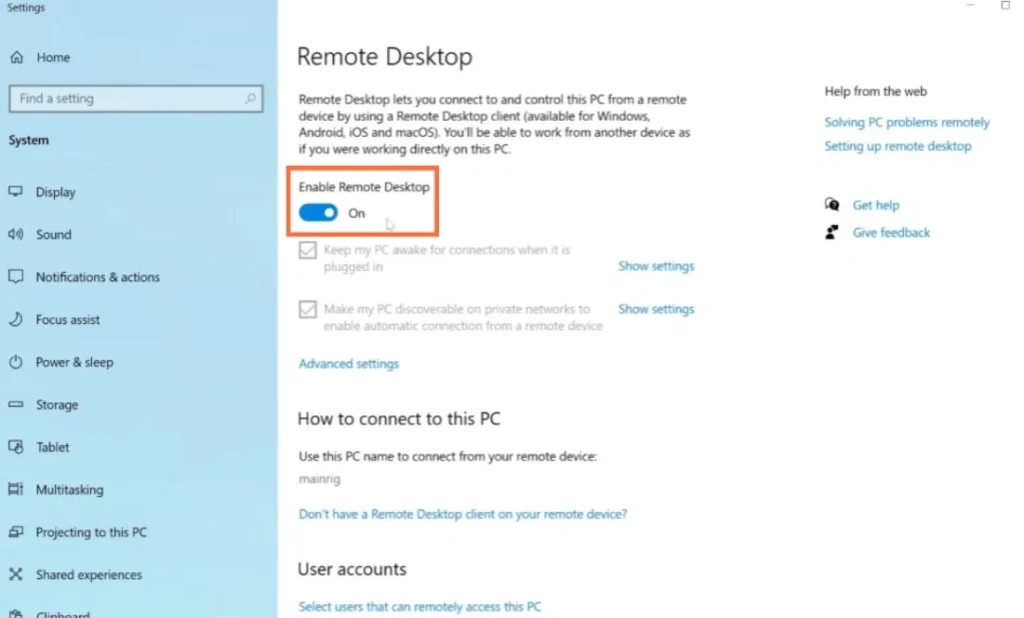
- Open Settings: Press Win + I and select System.
- Find and enable Remote Desktop: Scroll down to Remote Desktop, switch On, and confirm.
After enabling, the computer name will be shown and can be used from another device. Ensure Remote Desktop stays enabled.
Firewall Settings
- Open Control Panel → System and Security → Windows Defender Firewall → Allow an app or feature through Windows Defender Firewall and ensure Remote Desktop is allowed for Private and Public profiles.
Adding Additional Users
In Remote Desktop settings, click Select users that can remotely access this PC and add the desired users to grant access for non-administrators.
Enabling Remote Desktop via CMD
- To enable RDP connections, run: reg add "HKEY_LOCAL_MACHINE\\SYSTEM\\CurrentControlSet\\Control\\Terminal Server" /v fDenyTSConnections /t REG_DWORD /d 0 /f
- To enable firewall rules for Remote Desktop: netsh advfirewall firewall set rule group="Remote Desktop" new enable=Yes
- Or individual TCP/UDP rules: netsh advfirewall firewall set rule name="Remote Desktop – User Mode (TCP-In)" new enable=Yes profile=Private,Public
For external access, forward the default port 3389 on your router to the internal IP address of the target device and restart the system if needed: shutdown /r /t 5.
On the client, open Remote Desktop and enter the device name or IP (and port if changed) to connect.
Enabling Remote Desktop on Windows Server via PowerShell
- Run PowerShell as Administrator and execute: Set-ItemProperty -Path "HKLM:\System\CurrentControlSet\Control\Terminal Server" -Name "fDenyTSConnections" -Value 0 -Force
- Enable firewall rules for Remote Desktop: Enable-NetFirewallRule -DisplayGroup "Remote Desktop"
- If needed, start the service: Start-Service -Name "TermService" -ErrorAction SilentlyContinue
- Verify status: (Get-ItemProperty -Path "HKLM:\System\CurrentControlSet\Control\Terminal Server").fDenyTSConnections should be 0
Security notes: use accounts with strong passwords, use VPN for Internet access, and configure firewall/router when changing the port.
Enabling Remote Desktop on Windows 11 via Settings
- Open Settings (gear icon or Win + I).
- Go to System and locate Remote Desktop.
- Toggle Remote Desktop to On and confirm.
- Once enabled, you can connect from another device using the Remote Desktop app.
Security tips: use Network Level Authentication to verify the client before a session starts; the default RDP port is 3389, and if needed, change it and configure the firewall/router accordingly.
How to Disable Remote Desktop?
- Method 1: Settings → System → Remote Desktop, switch Off.
- Method 2: Control Panel → System and Security → System → Remote settings, select Don’t allow remote connections to this computer, then Apply/OK.
- Method 3: CMD as administrator: reg add "HKEY_LOCAL_MACHINE\\SYSTEM\\CurrentControlSet\\Control\\Terminal Server" /v fDenyTSConnections /t REG_DWORD /d 1 /f and restrict firewall rules: netsh advfirewall firewall set rule group="Remote Desktop" new enable=No
- Method 4: PowerShell as administrator: Set-ItemProperty and Disable-NetFirewallRule -DisplayGroup "Remote Desktop"
Troubleshooting Remote Desktop
To diagnose and fix connection issues, follow these steps: check that RDP is enabled on the target, verify the correct name/IP/port, test network connectivity (ping), review local firewall rules, confirm port forwarding/NAT for Internet access, validate user permissions and authentication (NLA compatibility), ensure the client is compatible, review error messages and event logs, and check network/security software that may block RDP.
Summary
Remote Desktop enables remote control of a computer, useful for technical support and server management. Primary methods include graphical interfaces (Settings or Control Panel) and command-based approaches (CMD or PowerShell). After enabling, configure firewall/pat-forwarding or VPN, use strong passwords and NLA, and adjust access controls as needed. Always test the connection from a client after changes.
FAQs
What does remote control mean?
It means connecting to another computer from afar and managing its display, applications and files as if you were sitting in front of it.
Do all Windows versions support Remote Desktop?
The Remote Desktop server is typically available on Pro, Enterprise and Education editions, while Home editions usually do not include the full server functionality.
Do I need Internet to use Remote Desktop?
No, if both devices are on the same local network. For remote access over the Internet, you need VPN or port forwarding with a public IP/address.
Can I access Remote Desktop from a phone?
Yes. Official Remote Desktop apps exist for Android and iOS, and compatible clients can connect to a PC by entering the device address and user credentials.
How does Remote Desktop differ from tools like TeamViewer?
RDP is typically an internal Windows protocol providing direct, high-performance connections and is often limited to Windows with network configuration requirements. Tools like TeamViewer or AnyDesk simplify Internet access through NAT and firewalls and offer extra features such as file transfer and session management, but may rely on third-party services and have different security/pricing models.
To evaluate stability, security and maintenance of this infrastructure, also consult the network support guide.
برای ارزیابی پایداری، امنیت و نگهداری این زیرساخت، راهنمای پشتیبانی شبکه را نیز مطالعه کنید.