A Practical Guide to Windows Server Backups
Backing up Windows Server is a key practice for protecting data and system configurations. This guide reviews backup and recovery approaches and highlights essential tips to ensure availability and rapid recovery.
خلاصه تخصصی مقاله
Backing up Windows Server is a key practice for protecting data and system configurations. This guide reviews backup and recovery approaches and highlights essential tips to ensure availability and rapid recovery.
موضوعات اصلی: backup، Server، Windows، recovery، data، storage
Backing up Windows Server is a key practice for protecting data and system configurations. Without an adequate backup, damage or failure can lead to data loss. Windows Server provides a range of tools and methods for backup and recovery, enabling quick restoration of the system state. This guide reviews the main backup and recovery approaches for Windows Server.
Backup tools in Windows Server
Windows Server includes several built‑in options to back up the system and data. Below are the main approaches.
Using Windows Server Backup
Windows Server Backup is the default backup tool available from the operating system. It can back up the entire server or a subset of data and settings. Key capabilities include full, custom, and incremental backups. It is usable via a graphical interface or command line and typically supports scheduled runs.
Using PowerShell for automated backups
PowerShell is a powerful management tool for Windows servers. It enables scheduling backups and selecting specific data sets. Automated scripts can perform regular backups and facilitate data recovery, making it ideal for those seeking more control and automation.
Using third‑party software
Beyond built‑in tools, third‑party backup software offers additional features such as cloud storage, network-wide backups, and faster recovery. These tools help protect servers against hardware and software failures.
How to back up Windows Server
The following steps provide a practical workflow for backing up Windows Server.
Installing Windows Server Backup
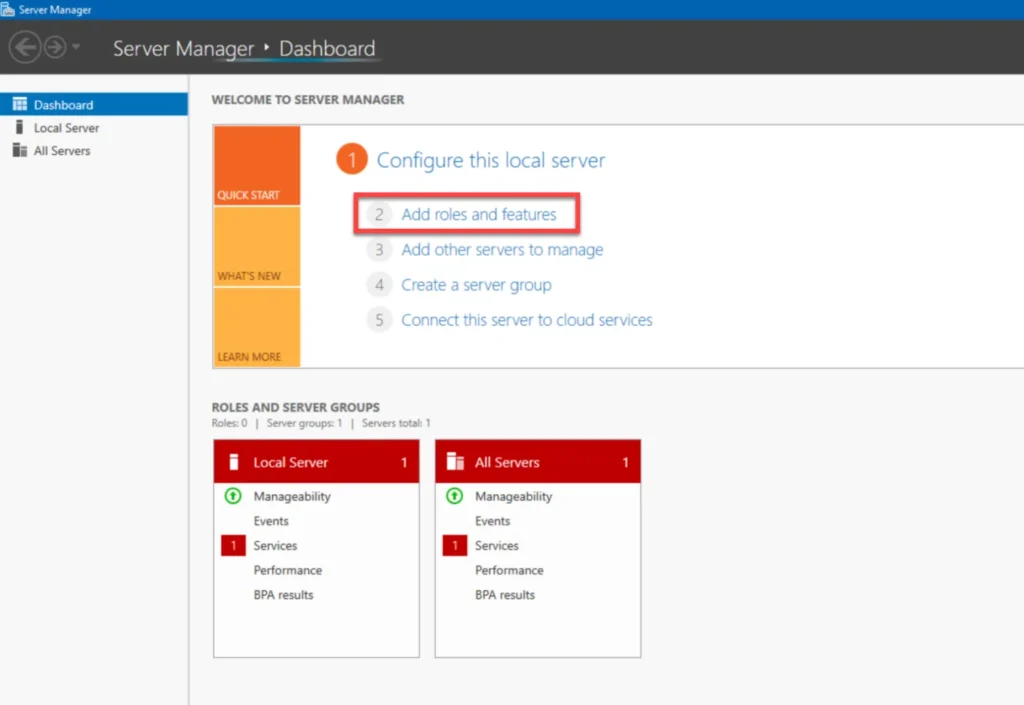
To install Windows Server Backup: open Server Manager from Start, select Add Roles and Features to start the wizard, locate Windows Server Backup under Features, enable Restart the destination server automatically if required if needed, then click Install and finally Close. After installation, the tool is ready to use for backing up server data.
Back up with Windows Server Backup
Open Windows Server Backup from the Tools menu in Server Manager. In the left pane, select Local Backup to start a backup. You can perform a one‑time backup or schedule it. To run a one‑time backup, choose Backup Once… and proceed. In Backup Options, click Next. In the Select Backup Configuration page, choose Custom and click Next. In the Select Items for Backup page, specify exactly which data to back up, including critical data like system state, files, or drives. Review selections to ensure coverage. You can run the backup immediately or schedule it for a future time.
Where to store backup data
Storage location depends on configuration. Options include Local Drive, External Hard Drive, NAS, Remote Network Share, and Cloud Storage. Each option has trade-offs for security, accessibility, and capacity. Consider security requirements and accessibility when choosing a location.
Recovering data from Windows Server backups
To recover, access Windows Server Backup and select Recover…. Choose whether the backup is local or on a network location. Pick the desired backup date and Recovery Type as Files and Folders to restore only specific files and folders. Specify the recovery location and proceed. Note that restoring to a remote server or UNC path is not supported; recovery must occur to a local folder on the same server.
Backup vs. image backup
Backup typically covers specific data or files and is suitable for restoring individual items, while image backup captures the entire system for full recovery. Images take longer and require more space but enable system-wide restoration.
Common backup problems
Challenges include insufficient storage, lack of remote network support, recovery issues, long backup times, and misconfigured automatic backups. Address these by ensuring adequate storage, using alternative tools for remote backups, regularly testing recovery, and configuring proper scheduling.
For more information about network support, review the related resources.
Summary
Backing up Windows Server is essential for data security and rapid recovery after issues. With appropriate tools and well‑planned processes, server data can be safeguarded and restored quickly. Common issues such as storage shortages, network limitations, recovery problems, and auto‑backup misconfigurations can be mitigated with proper storage, alternative tools, regular recovery testing, and correct configuration.
Frequently Asked Questions
How do I perform a full backup of Windows Server?
Use Windows Server Backup. Typical steps: open Windows Server Backup, select Backup Once…, choose Full Server as the configuration, specify a storage location, and start the backup.
Can I use cloud storage for backup?
Yes. Cloud services can store Windows Server backups. Configure suitable backup tools and store backups in the cloud.
How can I address common backup issues?
Typical causes include insufficient storage, long backup times, and recovery problems. Mitigate by increasing storage, using alternative tools, testing recovery, and ensuring correct scheduling.
برای ارزیابی پایداری، امنیت و نگهداری این زیرساخت، راهنمای پشتیبانی شبکه را نیز مطالعه کنید.