NAT on Modems: Concept, How It Works, and Basic Settings
NAT translates private network addresses to a public address, enabling many devices to share a single public IP. This article explains NAT concepts, types, and basic modem settings.
خلاصه تخصصی مقاله
NAT translates private network addresses to a public address, enabling many devices to share a single public IP. This article explains NAT concepts, types, and basic modem settings.
موضوعات اصلی: NAT، internal، internet، public، private، device
NAT on a modem translates network addresses and acts as a bridge between the private internal network and the wide internet. Given IPv4 address scarcity, this technology enables many devices to connect to the internet using a single public IP address. Understanding how NAT works and its related settings on modems is the first step in managing traffic and optimizing access.
What is NAT?
NAT is a method used by routers and firewalls to translate private IP addresses to public IP addresses and vice versa.
Devices inside a local network typically use private IP addresses that are only valid within that internal network and cannot directly connect to external servers on the internet.
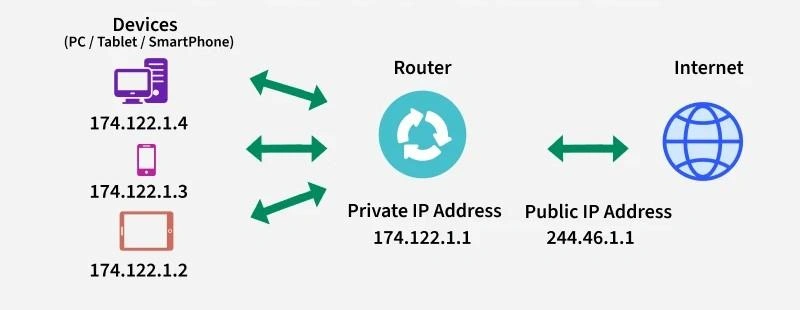
When a device accesses the internet, NAT replaces its private IP with the public IP of the router, enabling communication with external servers. When the response comes back, the router consults the NAT table to identify which internal device initiated the request and forwards the data to the correct destination.
This process usually happens in a fraction of a second and is almost imperceptible to the end user.
A simple analogy
NAT can be thought of as the reception desk in a crowded office building. Internal employees have internal extensions, but external callers reach the building through a single main number. The receptionist routes each call to the correct internal person.
Without NAT, every device would require a unique public IP address, which is impractical given IPv4 limitations.
NAT is commonly categorized into three types: Static NAT, Dynamic NAT, and PAT (NAT Overload). In Static NAT, a private IP maps to a single public IP. In Dynamic NAT, private addresses are mapped to a pool of public IPs temporarily, and the mapping changes after the session ends. PAT or NAT Overload uses a single public IP with different ports to serve multiple private addresses.
How NAT works
NAT operation is a smart function at the network layer that modifies the headers of packets and keeps track of outgoing connections so it knows which internal device created each connection.
The typical process consists of four steps:
- Step 1: The device sends a request
For example, a laptop sends a request from its private address such as 192.168.1.10. The request reaches the modem/router. - Step 2: The router translates the address
The router replaces the private address with its public address and records the mapping in the NAT table to identify which internal device sent the request. - Step 3: The request reaches the internet
The destination server sees the request as coming from the router’s public IP. - Step 4: The response is returned to the final destination
The router uses the NAT table to map the response back to the correct internal device and forwards the data to the private IP.
All of this happens in a fraction of a second to provide a seamless internet experience.
Why NAT is used on modems
Using NAT on modems (which perform routing) is a technical necessity that enables home and small office networks to connect to the internet in the common way. The main reasons are:
- IPv4 address shortage
- Layered security by masking internal addresses
- Manageability and adaptability to changing internet service providers
Benefits of NAT
- Efficient IP management allowing many devices to connect using a single public IP
- Hidden internal addresses reducing exposure to the internet
- Flexibility to change infrastructure or ISPs without widespread changes to internal devices
- Lower costs by avoiding separate public IPs per device
Disadvantages of NAT
NAT imposes challenges for end-to-end connectivity. It can add processing overhead and complicate source tracing for security and troubleshooting. Some modern applications may require additional configuration to traverse NAT.
- Complexity for remote access to internal services
- Potential latency in some scenarios
- Issues in P2P apps and online games due to lack of direct bidirectional connectivity
- Difficulty in tracing and debugging traffic in large networks
NAT settings on modem
NAT settings are usually enabled by default, but in some scenarios you may need access to them.
To manage NAT, access the modem's management panel and locate the NAT section. The exact location varies by brand but is often in WAN, Internet Setup, or Advanced sections and includes an option labeled Enable NAT.
After making changes, save or apply the changes. In many modems, NAT changes take effect after a reboot.
Note: If you disable NAT, other devices may lose internet connectivity. Therefore NAT is typically kept enabled except for specialized cases such as using the modem in bridge mode.
Frequently asked questions
Does NAT improve security?
Yes, NAT provides an indirect protective layer by masking internal addresses and limiting direct access to devices from the internet.
Does NAT affect ping?
Yes, typically the impact is small, but on weak hardware or with many devices connected, ping may increase slightly due to router processing.
What is Port Forwarding and how does it relate to NAT?
Port Forwarding directs incoming traffic from the internet to a specific internal device, bypassing NAT restrictions for certain services and enabling internal services to be reachable from the internet.
How to enable or disable NAT on a modem?
To manage NAT, access the modem's management panel and look for an option likely labeled Enable NAT. It is usually best to leave NAT enabled unless you have a specific technical need to disable it.
Do all modems support NAT?
Yes, most modem-router devices on the market support NAT by default; removing NAT can disrupt internet functionality and device access.
برای ارزیابی پایداری، امنیت و نگهداری این زیرساخت، راهنمای پشتیبانی شبکه را نیز مطالعه کنید.