A Practical Guide to Changing the Default RDP Port for Security
Changing the Remote Desktop port is a simple and effective way to reduce automated attacks and internet scans on Windows servers. Moving RDP away from the default port 3389 lowers exposure. This guide covers prerequisites, steps, and security practices.
خلاصه تخصصی مقاله
Changing the Remote Desktop port is a simple and effective way to reduce automated attacks and internet scans on Windows servers. Moving RDP away from the default port 3389 lowers exposure. This guide covers prerequisites, steps, and security practices.
موضوعات اصلی: port، new، firewall، access، RDP، Windows
Changing the Remote Desktop port is a straightforward yet effective method to reduce automated attacks and internet scans on Windows servers. By moving RDP away from the default port 3389, exposure is reduced and the security of remote connections is improved. However, this action alone is not sufficient for full security; it should be combined with strong passwords, a firewall, and IP restrictions as part of a broader security policy.
Prerequisites for port change include having administrative access, an alternative way to access the server, ensuring the new port is opened in the firewall, avoiding commonly used or reserved ports, ensuring the Remote Desktop service is enabled, preparing for a restart, and documenting the new port.
Administrative Access To change the port, you must be connected to the Windows system with Administrator privileges since the change is made in the registry.
Alternative Access It is recommended to have an alternative access method such as a server console or hosting/VPS panel to recover if RDP access is lost.
Open New Port in Firewall The new port must be opened in Windows Firewall and, if present, in the network or data center firewall; otherwise remote access will fail.
Avoid Reserved or Common Ports Do not choose ports used by other services (for example 80, 443, 21, etc.) to prevent conflicts.
RDP Service Availability Ensure the Remote Desktop service is active and functioning on the current port (3389) before changing it.
Prepare for Restart The change typically requires restarting the Remote Desktop service or the entire system; plan a suitable window.
Document the New Port Record the new port in technical documents to avoid confusion later.
With these prerequisites satisfied, the port change can be performed with minimal risk and good stability.
Steps to Change the Remote Desktop Port in Windows
To change the RDP port on Windows Server, you must modify registry and firewall settings in the correct order. This makes RDP accessible on a new port instead of 3389.
Important: Before starting, ensure you have an alternative access method such as a server console or VPS control panel to avoid being locked out in case of misconfiguration.
Open Registry Editor to Change Port3389
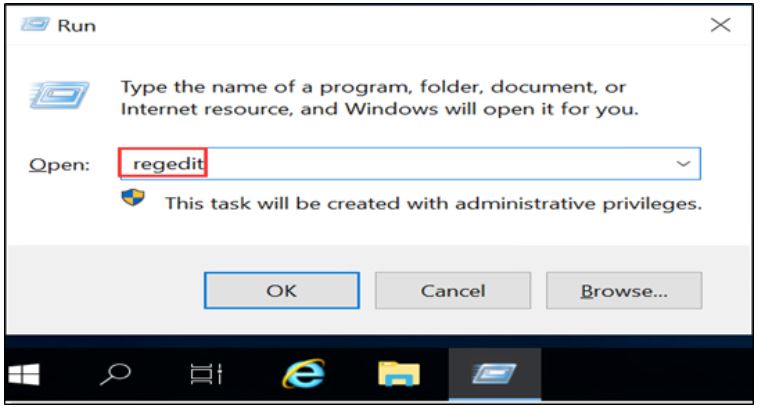
Open Registry Editor. Press Windows key + R. Type regedit. Click OK.
Navigate to the RDP PortPath
Navigate to: HKEY_LOCAL_MACHINE\SYSTEM\CurrentControlSet\Control\Terminal Server\WinStations\RDP-Tcp
Find the PortNumber value which indicates the current RDP port.
Change PortNumber
Double-click PortNumber. Select Decimal. Enter the new port. For example 33901. It is generally better to avoid common ports such as 80, 443, 21, or 25; use a nonstandard port above 10000 for better isolation.
Close Registry Editor
After entering the new port, click OK and close Registry Editor.
Create a New Firewall Rule
Open Windows Firewall settings to create a new inbound rule for the new port.
- Open Control Panel
- Open Windows Defender Firewall
- Go to Advanced settings
- Inbound Rules
- New Rule
- Port
- TCP
- Specific local ports: enter the new port
- Allow the connection
- Profile: Domestic/Private/Public as needed
- Name the rule, e.g., RDP Custom Port 33901
- Finish
Check Other Firewalls
If your server is behind a data center firewall, NAT, or cloud firewall, open the new port in those sections as well. Sometimes Windows settings are correct but external access is blocked at the network layer.
Restart Server or Remote Desktop Service
To apply changes, restart the RDP service or the server. In many cases, a full restart is safer.
Test Connection with the New Port
After reboot, test with a new session using the format IP:PORT, e.g., 192.168.1.10:33901 or server-name:33901. Ensure a successful connection before closing the original session.
Disable Access on the Old Port
Only after confirming the new port works should you close port 3389 or disable its rule. Closing the old port too early is a common cause of admin lockout.
Tips for a Safer RDP Port
Changing the port and opening it in the firewall does not guarantee full security. Consider these alongside other measures:
- Use strong passwords
- Restrict allowed IP addresses
- Enable Network Level Authentication (NLA)
- Use a VPN
- Rename the Administrator account
- Enable Account Lockout Policy
- Keep Windows and services up to date
Conclusion
Changing the Remote Desktop port is a simple yet effective step to reduce automated scans and general risk on the default port 3389. Change PortNumber in the registry, open the new port in Windows Firewall (and in network firewalls if present), restart, and test connections using IP:PORT. Once verified, you may close the old port. However, port change alone does not guarantee full security; combine with strong passwords, IP restrictions, NLA, and regular system updates.
Frequently Asked Questions
Does changing the RDP port improve system security?
It can reduce automated scans on the default port, but it is not a complete security solution by itself. For stronger security, also use strong passwords, IP restrictions, VPN, NLA, and regular updates.
After changing the port, should I also adjust the firewall?
Yes. Open the new port in Windows Firewall and, if applicable, in any external firewall in the network or data center.
Which port should I use for RDP?
Prefer a nonstandard port, ideally above 10000 to avoid conflicts with common ports like 80, 443, or 21.
If I lose access after changing the port, what should I do?
Use alternative access methods such as a server console or VPS management panel to adjust registry or firewall settings and restore the previous port.
For assessing stability, security, and maintenance, consult the network support guide.
برای ارزیابی پایداری، امنیت و نگهداری این زیرساخت، راهنمای پشتیبانی شبکه را نیز مطالعه کنید.