Troubleshooting Windows: Unable to Obtain IP Address
This article reviews common causes of not obtaining an IP on Windows and provides practical steps to restore Internet connectivity.
خلاصه تخصصی مقاله
This article reviews common causes of not obtaining an IP on Windows and provides practical steps to restore Internet connectivity.
موضوعات اصلی: پشتیبانی شبکه، فایروال، کنید، شبکه، تنظیمات، باشد
To troubleshoot the IP address issue on Windows, first examine the possible causes: misconfigured network settings, hardware damage, or ISP issues. After identifying the problem, apply appropriate fixes. This article focuses on essential steps and practical tips to help you reconnect to the Internet and use online services.
Common IP obtain errors
Ethernet: invalid IP configuration This indicates the computer cannot connect to the Ethernet network, possibly due to misconfigurations or lack of DHCP.
Network cable unplugged or damaged The cable may not be properly connected or could be damaged, which can prevent obtaining an IP address.
Limited or no connectivity The device is connected to the network but cannot obtain a valid IP from the DHCP server, possibly due to misconfigurations or network interference.
No Internet access The device is connected to the network but cannot reach the Internet, which may be caused by router or ISP issues.
Unable to connect to the network The device cannot connect to the network due to software or hardware problems.
Identifying these errors helps you diagnose the issue faster and take the necessary steps to resolve it.
Why do devices not obtain IP addresses?
IP address assignment problems can arise from several causes described below.
Hardware problems
Damaged network cables: If the cable is damaged, the connection stops and the device cannot obtain an IP.
Router or modem hardware may fail to send signals or be disconnected.
- Read more: how to test and troubleshoot network cabling?
Incorrect network settings
DHCP disabled on the router means devices cannot obtain IPs automatically.
Static IP misconfigurations can prevent network access.
Software interference
Firewalls or security software can block proper connectivity.
Old or corrupted network drivers can cause network issues.
ISP issues
ISP outages can prevent network connections and IP assignment.
Other reasons
Operating system TCP/IP settings may require reset. IP address management may require renewal.
Resolving IP issues on Windows
Follow these steps to resolve IP issues in Windows, including Limited Access errors.
Restart the modem/router
Power cycle the modem or router by unplugging it, waiting ten seconds, and plugging it back in.
Configure network adapter settings
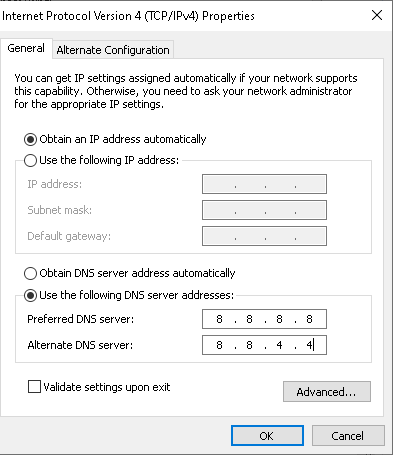
Check IP settings: open the network icon, choose Network & Internet settings, then Change adapter settings. Right-click Ethernet and select Properties. Select Internet Protocol Version 4 (TCP/IPv4) and click Properties. Ensure Obtain an IP address automatically and Obtain DNS server address automatically are selected. If already set, switch to Use the following IP address and Use the following DNS server address and enter values provided by your ISP. Save with OK.
Fix Limited Access by flushing DNS
Open Command Prompt as administrator and run ipconfig /flushdns. Restart the computer after confirmation of success.
Network troubleshooter
Use Windows’ built-in troubleshooter: Settings > Network & Internet > Status > Network troubleshooter.
Update network adapter drivers
Open Device Manager, expand Network adapters, right-click the relevant adapter and select Update driver. Consider updating all adapters if unsure.
Disable and re-enable Ethernet
In Network & Sharing Center, go to Change adapter settings. Right-click Ethernet and choose Disable, wait a moment, then Enable again.
Release and renew IP
Open Command Prompt as administrator and run ipconfig /release followed by ipconfig /renew. A reboot might be required.
Disable IPv6
Open Ethernet Properties, uncheck Internet Protocol Version 6 (TCP/IPv6), and click OK.
Reset TCP/IP stack
Run: netsh winsock reset and netsh int ip reset. Reboot the computer. Windows will reinstall TCP/IP stack with default settings.
Manual IP configuration
Open Run (Win+R) and type ncpa.cpl. Open Ethernet Properties, select Internet Protocol Version 4 (TCP/IPv4) and click Properties. Enable Use the following IP address and enter a valid IP for your network. Save with OK.
Firewall settings
Open Windows Security, go to Firewall or Network protection and review allow list for your network. Adjust firewall settings if needed.
Replace network cable
If the Ethernet cable appears damaged, try a different cable and test the connection again.
Summary
Solving IP issues involves several steps such as enabling/disabling Ethernet, releasing/renewing IP, disabling IPv6, resetting the TCP/IP stack, and applying manual IP. These steps help restore normal network settings and fix Internet connectivity problems.
Also, reviewing firewall settings and replacing the Ethernet cable can aid in identifying and resolving issues. If the problem persists after performing these steps, contact your Internet service provider.
Frequently Asked Questions
Why is my computer connected to Wi‑Fi but no Internet?
Causes include misconfigured network settings, modem/router issues, ISP problems, or firewall/security software.
Does power cycling the modem fix IP issues?
Yes, rebooting the modem often resolves connectivity and IP issues by resetting the link with the ISP.
How can I tell if IP is assigned to my system?
Run ipconfig in Command Prompt. If you see an IP address, subnet mask, and default gateway, IP is assigned.
Is using a manual IP helpful?
Yes, manually assigning a valid IP can help when DHCP isn’t functioning. If DHCP fails, set a static IP within your network range.
برای ارزیابی پایداری، امنیت و نگهداری این زیرساخت، راهنمای پشتیبانی شبکه را نیز مطالعه کنید.