How to Find the Printer's IP Address
This guide offers five practical methods to locate a printer IP address across Windows, macOS, the printer display, router admin panel, and printer management software.
خلاصه تخصصی مقاله
This guide offers five practical methods to locate a printer IP address across Windows, macOS, the printer display, router admin panel, and printer management software.
موضوعات اصلی: printer، network، you، find، address، Settings
If you are looking for a quick way to find a printer's IP address, five practical methods are presented. These methods include using Windows or macOS, checking via the printer's display, accessing the router's admin panel, and using Command Prompt. Each method may be more suitable depending on the device model and work environment. If you still don't know how to locate the printer IP, these five comprehensive approaches will clarify the path. In practice, viewing the IP address of the network printer helps you examine the connection between computer and printer more accurately.
Why do we need the printer IP address?
Finding the printer IP isn't just a simple skill; it's the foundational step in setting up an efficient print network. If you want to connect the printer to several systems or enable remote access, you must know where the printer's IP is. Also, when there are connection errors or incomplete prints, having the device IP helps you diagnose faster. Finding the printer IP, especially in organizations with multiple users, is a fundamental IT skill.
How to find the printer IP
If you work in an environment with multiple printers, knowing how to find IP addresses is essential. You can use the Windows control panel, the printer's menu, or even through the network router. In many cases, IP information can be extracted using printer management software. When checking where the printer IP is, pay attention to the connection method (USB or network). Finding the printer IP not only saves time but also makes managing network printing resources much easier.
1. Check via the printer's display
If your printer has a touchscreen or buttons, one of the easiest ways to view the printer's network IP is this physical panel. Enter the Settings or Network Settings section; usually there is an option named TCP/IP or IP Address. Some models even offer a Print Network Configuration Page option that prints network information on paper. This method is among the fastest and most accessible ways to find the printer IP, especially when you do not have access to a computer.
2. Print the printer's network report
In some models, you can print a network settings page by simply pressing a few buttons, without entering menus or needing a computer. This report includes details such as SSID, connection type, and most importantly the IP address. Printing the network report is very useful in emergencies or to verify initial settings. If you don't know how to find the printer IP, this method can be the fastest way to access the necessary information. It is also suitable for archiving and documenting network settings.
3. Find the printer IP via modem or router
One of the most reliable ways to find the printer IP is to use the router's admin panel. In this method you simply enter the address 192.168.1.1 in a browser, provide login details, and go to the DHCP Client List or Device List. There you can see device names including the printer and note its IP address. If you wonder where the printer IP is or if the device has no display, this method is one of the best options. This method is among the common ways to find the printer IP in organizational and home networks.
4. Using Command Prompt in Windows
For Windows users, using the Command Prompt is one of the fastest methods to view the network printer's IP address. Open CMD and run the commands arp -a or netstat -r. This will display a list of devices connected to the network, and you can identify the printer IP by brand or name. This method is especially useful if you are looking for the printer IP without a display or control panel. It enables finding the printer IP without software intermediary.
5. Using printer management software
One of the more professional methods for finding the printer IP is to use software that comes with the printer. Programs such as HP Smart, Epson Software, and Canon IJ Utility allow you to view and modify network settings. By going to the network settings section in these tools, you can easily view or change the printer's IP address. Viewing the network printer IP this way is particularly useful for technicians and professional users, especially in organizations. This method complements other printer control tools and provides a reliable approach to network management.
Frequently Asked Questions
Is it possible to change the printer IP address?
Yes, in most network printers the device IP can be changed either manually or via DHCP. Just enter the printer's network settings or type the current IP in a browser and apply the necessary changes via the admin panel. Knowing how to find the printer IP is a prerequisite for this. If you want to set a static address for your printer, this can be very helpful.
If the printer has no display, how do we find its IP?
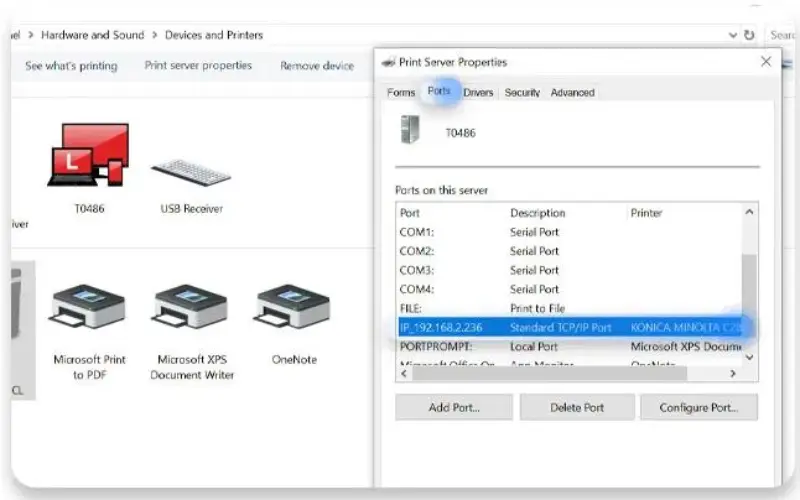
Even if the printer lacks a display, there are still ways to find the IP. One good option is to access the modem settings and check the Client List. You can also use Windows by going to Devices and Printers and checking the port settings to find the printer's IP. So the absence of a display does not prevent finding the printer IP in Windows.
For evaluating the stability, security, and maintenance of this infrastructure, also read the Network Support guide.
برای ارزیابی پایداری، امنیت و نگهداری این زیرساخت، راهنمای پشتیبانی شبکه را نیز مطالعه کنید.