How to connect a printer to a computer and laptop using a network cable
This guide explains how to connect a printer to Windows and macOS via a LAN cable, covering IP configuration, driver installation, firewall settings, and network troubleshooting.
خلاصه تخصصی مقاله
This guide explains how to connect a printer to Windows and macOS via a LAN cable, covering IP configuration, driver installation, firewall settings, and network troubleshooting.
موضوعات اصلی: printer، network، Windows، print، driver، settings
Connecting a printer to Windows and macOS over a network cable
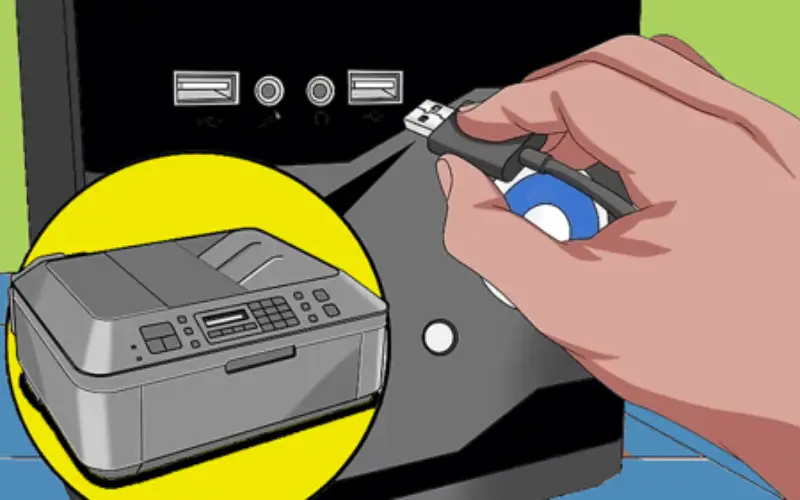
To connect a printer to a Windows PC or a Mac via a LAN cable, connect the network cable to the printer's Ethernet port and to a switch or router, then power on the printer so it is discoverable on the local network. In Windows, open the Control Panel and go to Devices and Printers. Click Add a printer and allow automatic search. If the printer does not appear, choose an option to add a printer by IP address or hostname and enter the printer's IP address. After the device is found, select the appropriate driver or use a downloaded driver file. Finally, print a test page to confirm the connection.
Configuring the printer IP address for network connectivity to a laptop
For reliable connectivity, configure the network printer with a static IP. Access the printer’s network settings via its control panel or web management page. Disable DHCP and assign an internal IP (e.g., 192.168.1.50). The subnet mask is usually 255.255.255.0 and the default gateway should be the router’s IP. The DNS server can be the router’s DNS or a public DNS such as 8.8.8.8.
Installing the printer driver in Windows 10/11 after LAN connection
After confirming hardware connection and IP addressing, install the printer driver. Download and run the driver from the manufacturer’s site. If the driver does not have a Setup file, go to Control Panel and in Devices and Printers click Add a printer. After entering the printer’s network address, Windows will present the default drivers. If your exact model is not listed, choose Have Disk and point to the folder where you extracted the downloaded driver. After installation, set the printer name and default settings and print a Test Page to verify.
Connecting a printer to a MacBook or macOS over a network cable
In macOS, connect the printer via LAN to the router or switch and ensure the IP address is static or assigned by DHCP. Then in System Preferences > Printers & Scanners click the + to add. In the IP tab, choose IPP or HP JetDirect depending on printer support. Enter the Address with the printer IP, Protocol accordingly, and Queue with default/ipp/printername. Provide a friendly Name and Location. In Use, select the appropriate driver or click Select Software to locate it. After adding, print a Test Page to verify connectivity.
Troubleshooting common errors when connecting a printer via network cable
Sometimes you may encounter errors like “Printer offline” or “Cannot connect to printer.” First, check the LAN cable and ports and ensure the link light is on. Use ping to test connectivity. In Windows, restart the Print Spooler service. In Mac, remove and re-add the printer. Update the printer firmware and drivers. If multiple queues exist, print from the correct queue. If a firewall is in use, open the relevant ports for printing. Finally, rebooting the router and printer often resolves transient network issues.
Sharing a network printer in Windows after LAN connection
After connecting the printer to the switch or router, add the device in Windows. Go to Settings > Devices > Printers, then Add a printer. Choose to add a printer using a TCP/IP address or hostname and enter the printer’s IP address. Windows will detect the model or you can Use Disk to manually provide the downloaded driver.
Windows firewall settings to allow access to the network printer
To avoid firewall blocks on network printing, open Windows Defender Firewall and allow File and Printer Sharing for both Private and Public networks. If the printer name or print protocol is not listed, use Allow another app to add the relevant executable or port. Apply changes to enable network printing traffic.
Optimizing print speed with advanced printer settings
For higher print speed, adjust advanced printer settings: in Printer properties, set Print Processor to RAW on the Advanced tab, increase the Buffer Size or Spool Folder in Device Settings, and disable SNMP Status Enabled in Ports to reduce port status polling delays. These tweaks help the printer process and print data faster.
Securing a network-connected printer
To protect printed data, if HTTPS or IPPS is supported, enable encrypted output in the web admin page and enable Access Control or User Authentication, creating a whitelist of allowed IP addresses. This helps prevent unauthorized access.
Troubleshooting LAN cabling issues when connecting the printer to a laptop
If the laptop cannot detect the printer, test the cable, try a different port, and verify IP configurations match on the device. Use ipconfig /all to ensure subnet and gateway align with the printer. Ping the printer’s IP to test responsiveness. Ensure the printer is not in Sleep mode and that DHCP/static IP is correctly set. Rebooting the printer and router often resolves transient issues.
Conclusion
Connecting a printer to Windows and macOS over a network cable provides a stable, low-latency printing solution for group tasks. With a fixed IP, proper driver installation, and correct settings on both OSes, users can print without USB or third-party software. Quick troubleshooting, firmware updates, and firewall-based access control enhance reliability and security. Following these practices, network printing becomes faster and more dependable.
For evaluating the reliability, security, and maintenance of this infrastructure, consult the network support guide.
برای ارزیابی پایداری، امنیت و نگهداری این زیرساخت، راهنمای پشتیبانی شبکه را نیز مطالعه کنید.