Networking Multiple Computers with a Network Switch
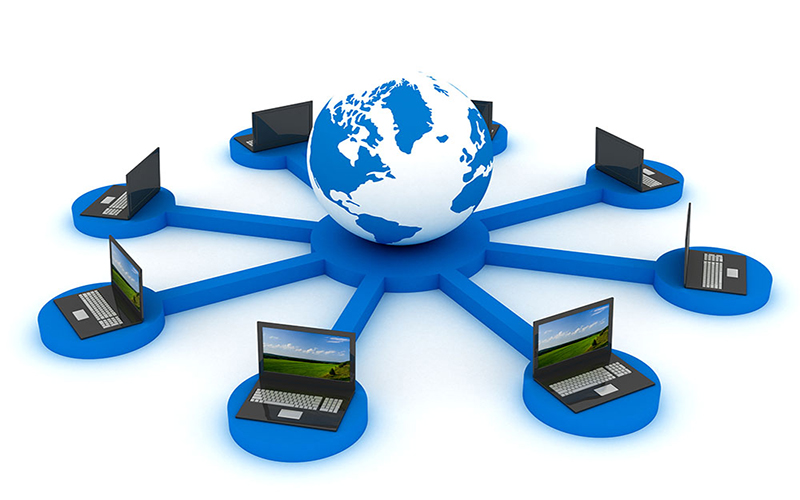
Networking multiple computers with a network switch is a simple, cost-efficient approach to establish a fast local network (LAN) for sharing files, printers, and Internet access in offices and educational settings.
خلاصه تخصصی مقاله
Networking multiple computers with a network switch is a simple, cost-efficient approach to establish a fast local network (LAN) for sharing files, printers, and Internet access in offices and educational settings.
موضوعات اصلی: switch، network، sharing، cables، can، configure
Networking several computers with a network switch is a common and straightforward way to establish a fast, stable connection among systems in offices and educational environments. It enables sharing files, printers, and Internet access between devices with minimal cost by creating a local area network (LAN).
Equipment needed for networking multiple computers
To start, every system must have an active network interface card. Then obtain network cables for the number of devices (usually CAT5e or CAT6). The number of ports on the switch should exceed the current number of users to allow future expansion. Switch speed depends on the model, with 10/100/1000 Mbps common; for large file transfers, gigabit is preferable. Also ensure a stable power supply and understand the difference between a switch and a router, since the switch handles internal connections and does not distribute Internet access.
Software configuration in Windows to create a network
After physically connecting the cables, assign unique hostnames and place all systems in the same Workgroup. If you do not have a gateway or DHCP server, configure IP addresses manually: open Network and Sharing Center, click Ethernet, and configure IPv4. Assign IPs in a range such as 192.168.1.2 to 192.168.1.10 with subnet mask 255.255.255.0. This is the foundation for proper communication. A network can work without a modem if IPs are in the same range and physical connections are correct.
Sharing files and resources on the network
After IPs are set, enable file and printer sharing and network discovery in Control Panel → Network and Sharing Center. Share folders by right-clicking, Properties, Sharing; printers can be shared too. This enables resource savings and time efficiency.
Networking multiple computers with a switch in Windows
Settings may differ slightly across Windows versions. In older versions like Windows 7/8 manual IP configuration may be necessary, while Windows 10/11 often configures automatically via DHCP. In all versions, when configured correctly, the network icon shows no warning.
Necessity of a switch in the network
A switch centralizes data transfer and reduces collisions, improving speed and efficiency, enabling sharing of files, printers, and Internet access.
Difference between Straight and Crossover cables and their role
Cables come in two common types. Crossover cables connect two computers directly without a switch, with pinouts reversed. For connections through a switch, Straight-through cables are used. Straight cables have identical pinouts on both ends and conform to standards such as T568A or T568B. In larger networks or data centers, Straight cables are common.
IP configuration and assigning IPs to computers
After ensuring connections, configure IP on each system: Control Panel → Network and Sharing Center → Change adapter settings → Local Area Connection or Ethernet → Properties → Internet Protocol Version 4 to configure IPv4.
Small home networks and using a modem instead of a switch
If you have only a few computers at home and use a modem for Internet, you may not need a separate switch. Most ADSL modems have multiple LAN ports and can act as a switch. Connect cables to the modem’s LAN ports and configure IP or DHCP for automatic addressing. If there are many computers or heavy traffic, consider a higher-quality switch.
Role of 10/100 vs Gigabit switches
Most switches today are 10/100 or 10/100/1000 Mbps. 10/100 switches are cheaper and suitable for light home/office use, but for transferring large files between multiple systems, Gigabit switches are preferable. The choice depends on budget and workload.
Key IP configuration tips
When assigning IPs, avoid duplicates and stay within valid ranges. If using 192.168.1.x, x should be 1–254. If Internet access is required, set a Default Gateway for all systems. DNS can be set to public servers such as 8.8.8.8 or the modem’s internal DNS 192.168.1.1.
Setting Workgroup and Computer Name
In Windows, configure Computer Name and Workgroup so all systems on the local network can see each other. Through System Properties → Change settings, set the computer name and Workgroup. Each computer should have a unique name (e.g., PC1, PC2) and the Workgroup must be the same. Reboot after applying changes.
Sharing folders and exchanging files on a local network
To share a folder, right-click the folder, Properties, and Sharing; enable Share this folder or Advanced Sharing and set permissions. Use Share with to specify user accounts or groups. In newer Windows versions there is Share with > Specific people. Other users can access the shared folder by referencing the computer name. If a common user name or password exists, login is easier.
Enabling or disabling firewall and antivirus during network setup
Sometimes firewall or antivirus blocks connectivity. Temporarily disable them to verify connectivity, then add exceptions for sharing ports and re-enable security software. Note that permanent disablement is risky; use exceptions to maintain security.
Networking with a central server for larger networks
In larger environments, a domain-based approach is used. A Domain Controller manages authentication and security policies. The switch still handles physical connectivity; identity management and security restrictions are handled via the domain.
Connecting printers and peripheral devices to the switch
Network printers can be connected directly to the switch with an IP in the same range. If a printer does not have a network port, you can connect it to a computer and share it, but network printers provide a clearer, more centralized solution.
Conclusion
Configuring a local network with a switch may seem complex at first, but with clear steps for hardware and software configuration, it can be implemented smoothly. Key points: ensure NICs are active, use appropriate cables (Straight or Crossover) as needed, assign unique IPs, place all systems in the same Workgroup, share folders and printers, and configure firewall/antivirus with proper exceptions. If Internet access via a modem is needed, connect the modem to the switch and set a Default Gateway to define the outbound path.
برای ارزیابی پایداری، امنیت و نگهداری این زیرساخت، راهنمای پشتیبانی شبکه را نیز مطالعه کنید.