Fixing HDMI audio drop after Windows connection: switching between speakers and HDMI
This guide explains how to restore audio output when HDMI is connected to Windows and how to switch between HDMI and internal speakers to prevent sound drops.
خلاصه تخصصی مقاله
This guide explains how to restore audio output when HDMI is connected to Windows and how to switch between HDMI and internal speakers to prevent sound drops.
موضوعات اصلی: audio، HDMI، speakers، device، sound، playback
Introduction
If you have ever connected your laptop or PC to a second monitor or projector via HDMI, you may have encountered complete audio drop or audio playing only through the display speakers. This can disrupt meetings or classes. The main reason is that Windows assigns the playback device to the HDMI output after connection and this may persist even after unplugging. This article provides simple and practical steps to manually switch between the built-in speakers and HDMI and to fully resolve the issue.
Why does HDMI cause audio cut or misrouting?
HDMI carries both video and audio. When connected, Windows typically routes audio to the HDMI device by default, which might continue after disconnection in some cases. This can result in no sound or audio playing through a display without speakers. This behavior is part of the OS default and is not necessarily a fault, but it can cause confusion, especially in office environments with frequent device switching.
In this guide, we show how to manually and quickly change the audio output back to the internal speakers and how to address the issue permanently if it occurs.
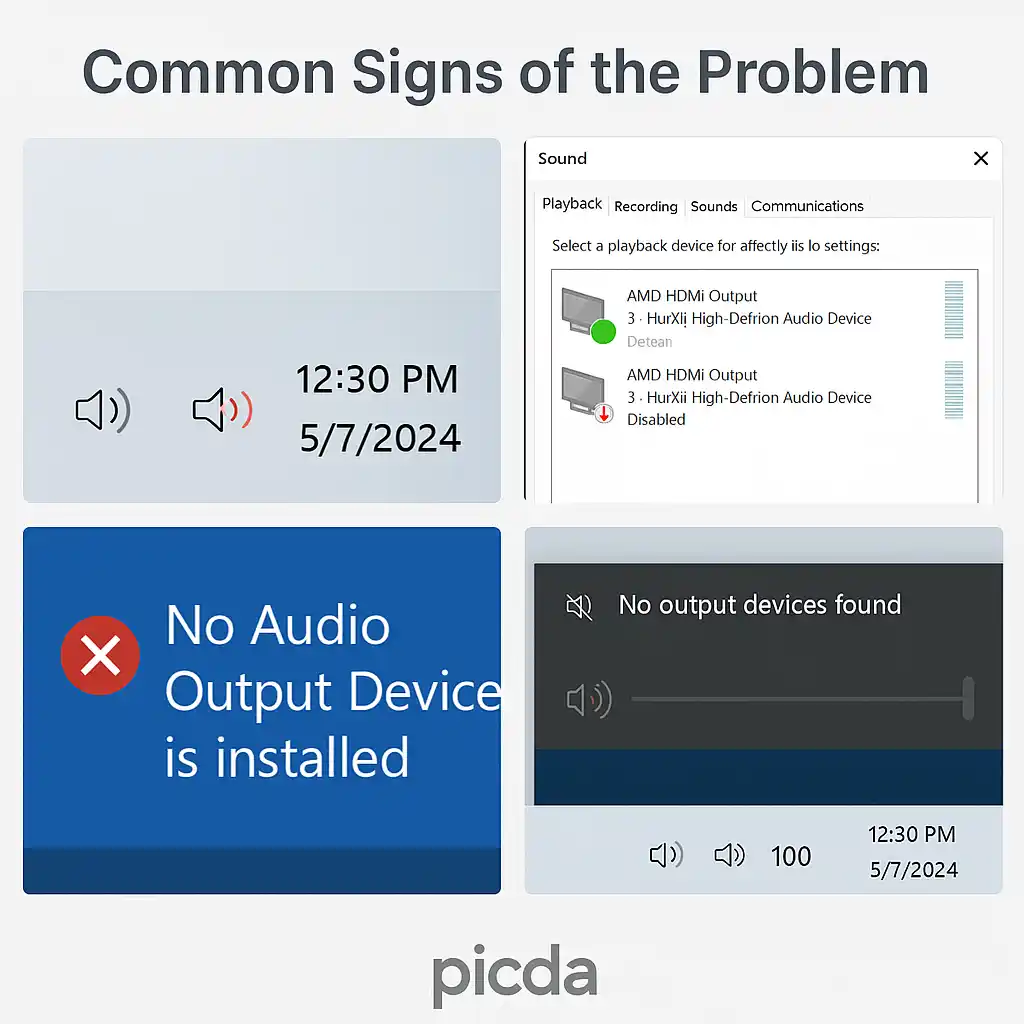
Common signs of HDMI audio routing issues
When sound stops after HDMI connection or is routed to HDMI, you may notice:
- Complete silence
- Audio only through the HDMI display
- Speaker icon in the taskbar changes appearance
- Internal speakers do not appear in the Playback devices list
- Message No Audio Output Device is Installed appears
Solutions
Solution 1: Manually choose the audio output from the taskbar
One of the simplest ways is to select the desired playback device from the taskbar.
- Click the sound icon on the lower-right corner.
- Open the playback devices list.
- Choose options like Speakers (Internal) or Speakers (HDMI).
- Play a test sound to verify output.
Solution 2: Set default playback device in Control Panel
For a more precise configuration:
- Open Control Panel.
- Go to Hardware and Sound > Sound.
- In the Playback tab, select the desired device and click Set as Default.
- Click OK and test the output.
Solution 3: Show and enable hidden devices
Sometimes Windows hides or disables the internal speakers.
- In the Playback window, right-click and enable Show Disabled Devices and Show Disconnected Devices.
- If the internal speakers appear, right-click them and Enable, then Set as Default.
Solution 4: Restart Windows audio service
If selecting an output still doesn’t restore sound, the audio service may be stuck.
- Press Win + R and run services.msc.
- Find Windows Audio in the list and click Restart.
- Do the same for Windows Audio Endpoint Builder.
Solution 5: Update or rollback the audio driver
A faulty or incompatible driver can cause HDMI to be the only playback route or to cut off sound entirely.
- Open Device Manager.
- Expand Sound, video and game controllers.
- Right-click your audio device (for example Realtek Audio) and choose Update driver or Properties > Driver > Roll Back Driver.
Conclusion
Resolving HDMI-related audio cut issues is a common task in both corporate and home environments. If the issue persists after following these steps, consider consulting a qualified technician for a deeper check of drivers and settings.
برای ارزیابی پایداری، امنیت و نگهداری این زیرساخت، راهنمای پشتیبانی شبکه را نیز مطالعه کنید.