Fixing File Explorer slowdowns and freezes in Windows 11: 9 practical methods
File Explorer on Windows 11 can slow down or freeze. This article provides practical, step-by-step methods to diagnose and resolve the issue without third-party software.
خلاصه تخصصی مقاله
File Explorer on Windows 11 can slow down or freeze. This article provides practical, step-by-step methods to diagnose and resolve the issue without third-party software.
موضوعات اصلی: Explorer، Windows، can، files، File، system
Introduction
Almost all of us work daily with File Explorer in Windows, from opening folders to searching work files and important images and documents. If this key tool slows down or freezes, productivity suffers, especially in home and organizational environments.
What is File Explorer in Windows 11 and its role?
File Explorer is the main tool for managing files, folders, and storage paths. It directly interfaces with core Windows UI components, and any disruption can cause slowdown, freezing, or overall system instability.
Common signs of File Explorer issues
Before applying fixes, it helps to know the signs. They can be obvious or appear only in specific scenarios.
Common signs
- Very slow opening of File Explorer, taking several seconds or more to open.
- Freezing when opening large folders, especially folders with large or multimedia files.
- Sudden crashes and closures without a message
- Contents of the Explorer window not displaying, window opens empty.
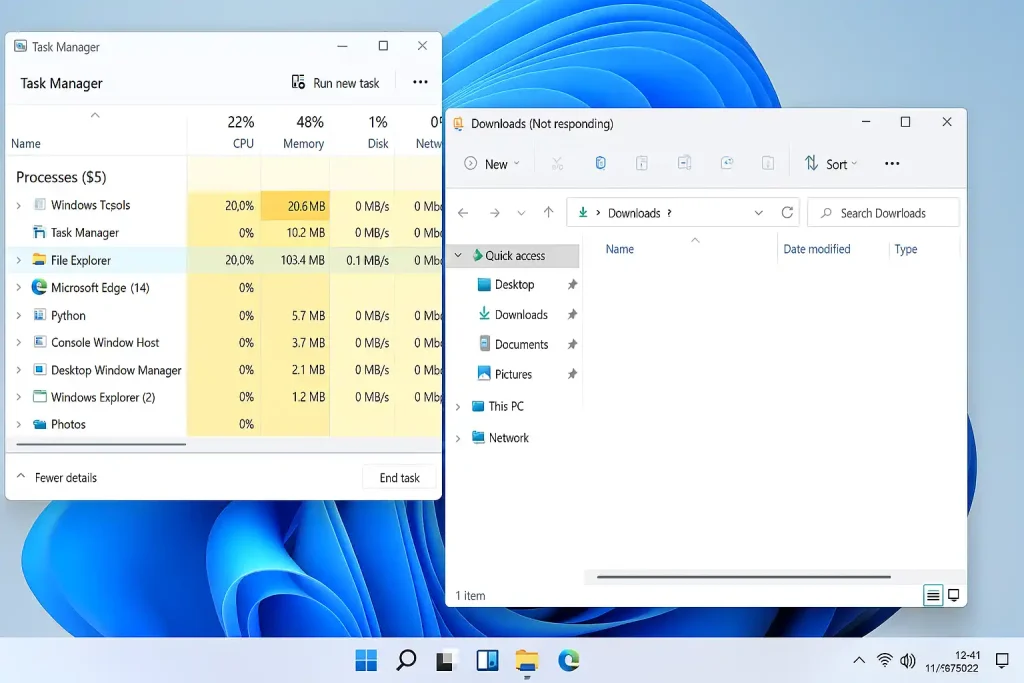
- High CPU or RAM usage in Task Manager— explorer.exe may consume substantial resources.
- Desktop and Start Menu become sluggish since UI elements rely on Explorer.
1. When opening heavy folders
Folders containing many files or various formats place high load on Explorer. It tries to generate thumbnails, read metadata, and load recent history; a file issue can stop the process and cause Not Responding.
2. When incompatible Shell Extensions are active
Third-party software may add context menu extensions that are not fully compatible with Windows 11, leading to freezing or crashes.
3. After installing or updating Windows 11
Some updates can cause UI or component compatibility issues, making Explorer behave unexpectedly in some cases.
4. When the cache and history are corrupted
Recent paths, visited folders, and search results stored by Explorer can become bloated or corrupted, causing slow startup or search delays.
5. If system files are damaged
Corrupted system files such as explorer.exe or related UI components can cause instability even on healthy hardware.
6. When the graphics driver is incompatible or outdated
Graphics rendering is tied to the GPU driver; an outdated or incompatible driver can cause blank windows or content not loading.
7. In networks or domain environments
Accessing network resources or mapped drives in enterprise settings can cause Explorer to stall while resolving network paths.
8. Malware or malicious scripts present
Some malware may hook into explorer.exe or alter system files, leading to crashes and abnormal resource usage.
9 effective methods to fix File Explorer in Windows 11
- 1. Restart File Explorer from Task Manager; to resolve a temporary issue.
- 2. Clear Explorer cache and history; clearing the cache can restore stability.
- 3. Disable incompatible extensions with a tool like ShellExView; selectively disable context menu extensions and test Explorer.
- 4. Run SFC /Scannow to repair system files; repairs corrupted system files.
- 5. Run Explorer in Safe Mode; if the issue does not occur, third-party software or drivers may be at fault.
- 6. Uninstall or rollback recent Windows updates; remove updates that cause incompatibilities.
- 7. Create a new user account; a corrupted user profile may be the cause.
- 8. Update graphics driver; obtain the latest version from the manufacturer.
- 9. Scan the system for viruses and malware; malware can impact Explorer.
Is File Explorer a sign of Windows corruption?
Short answer: sometimes yes, but not always. An Explorer issue does not necessarily indicate full Windows corruption.
When is Explorer problem not a sign of serious Windows corruption?
Examples include when the issue occurs only in a single folder or a single user profile, or is resolved by clearing cache or disabling extensions.
When should Windows corruption be suspected?
- Explorer crashes persist after restart or in Safe Mode
- SFC or DISM reports repair errors
- Other Windows components like the Taskbar or Start Menu are also affected
- Explorer’s resource usage is abnormally high permanently
- Issues start after failed or interrupted updates
What is the difference between Windows corruption and Explorer instability?
| State | Explorer instability | Windows corruption |
|---|---|---|
| Scope | Limited to Explorer | Key system components |
| Repetition | Situational | Persistent or widespread |
| Safe Mode | Usually safe | Often problematic |
| SFC / DISM | Usually clean | Repair errors |
| Resolution | Software configuration fixes | Repair or reinstall |
This distinction helps avoid premature Windows reinstallation.
Is reinstalling Windows a reasonable solution?
Reinstalling Windows should be a last resort. First check file integrity, test the user profile, audit drivers and extensions, and analyze behavior in Safe Mode.
Conclusion
Explorer slowdown or crashes in Windows 11 are often addressable. With the methods described, most issues can be resolved without a full Windows reinstall or heavy software tools.
1. Why does File Explorer in Windows 11 slow down or freeze?
Causes include corrupted cache, incompatible extensions, damaged system files, or incomplete updates.
2. Do I need to install software to fix Explorer?
No. Most issues can be resolved with built-in Windows tools such as Task Manager, SFC, or Safe Mode.
3. If only the Downloads folder slows, what should I do?
Inspect the Downloads folder in Safe Mode and remove any suspicious files.
4. Can a virus cause Explorer crashes?
Yes. Some malware can disrupt explorer.exe; a full system scan is recommended.
5. If these methods do not solve the issue, what next?
Consider seeking specialized technical support or professional assistance.
برای ارزیابی پایداری، امنیت و نگهداری این زیرساخت، راهنمای پشتیبانی شبکه را نیز مطالعه کنید.