Common Causes and Practical Solutions for Windows Update Failures
This article examines the common causes of Windows update failures and provides practical solutions to resolve update issues and maintain system security.
خلاصه تخصصی مقاله
This article examines the common causes of Windows update failures and provides practical solutions to resolve update issues and maintain system security.
موضوعات اصلی: Windows، Update، can، you، issues، settings
Common Causes and Practical Solutions for Windows Update Failures
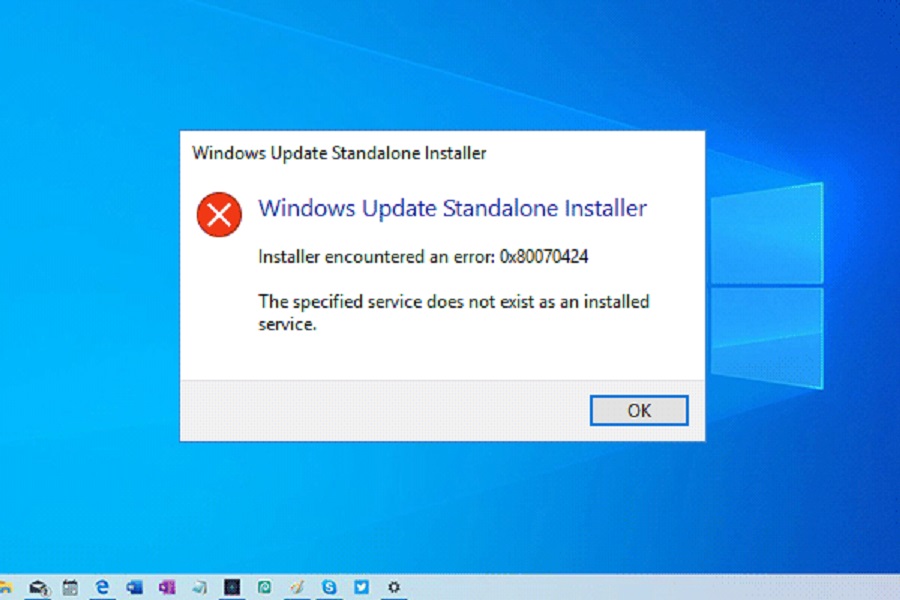
Windows updates are essential for maintaining and securing your systems, enabling the latest software and security protocols. However, you may occasionally encounter errors when attempting to update, which can disrupt system performance. This article reviews the common causes and provides practical solutions to resolve update issues without requiring professional help, and it answers the common question: why doesn’t Windows update?
Main reasons Windows update fails
Many users are unsure about the cause. In many cases the problem is solvable with a few simple steps. Sometimes professional help may be needed.
Some of the main reasons for Windows update failure include:
- Internet connectivity issues If your connection is weak, Windows cannot reach the update servers, and the update process stops.
- Insufficient disk space Updates require free space. Ensure there is adequate free space on the drive where Windows is installed (usually C:).
- Software conflicts Some installed software may interfere with the update process, block downloading, or modify firewall settings.
- Incorrect Windows Update settings Misconfigured settings can prevent updates from proceeding automatically or require manual intervention.
- Corrupted system files Damage to Windows system files can cause update problems, sometimes due to malware or hardware issues.
Effective fixes for Windows update errors
To fix a Windows update error, first identify the cause. For example, if your system is cracked, you may face update issues. In many cases update problems are solvable and can be addressed with simple steps.
- Restart the system Restarting can complete the installation of downloaded updates.
- Check Internet connection Ensure the system is connected to the Internet. Use a browser to test connectivity and make sure you are not connected to a VPN.
- Check the firewall Go to Windows Firewall and ensure Windows Update has Internet access.
- Free up disk space Remove unnecessary files on the Windows drive. You can also move Desktop, Downloads, and Documents folders to another drive.
- Use Windows Update Troubleshooter The Windows Update Troubleshooter can automatically identify and address many software-related issues.
Fixing Windows Update error through scripting
If you have tried all the above and still face Windows update problems, you may try the scripting approach. This method applies to Windows 8, 10, and 11 and may not work on older versions. Follow the steps below.
| Steps | Details |
|---|---|
| Step 1 | Open the Start menu and search for cmd |
| Step 2 | Right-click Command Prompt and choose Run as administrator |
| Step 3 | Enter the exact command sfc /scannew and press Enter |
| Step 4 | If you see the message restart Windows and run sfc again, restart the system |
| Step 5 | Try updating Windows again |
IT infrastructure support guidance
If you are seeking a reputable provider to support your IT and network systems, an IT support team with broad expertise can be a suitable choice. We offer services such as backup management, data governance, and network security. You can seek professional guidance for securing your IT environment.
Why doesn't Windows update?
Various reasons can cause update failure, including internet connectivity issues, insufficient disk space, or incorrect Windows Update settings.
Can Windows Update be performed manually?
Yes; you can install updates manually through Windows Update in Settings.
How can I use Windows Update Troubleshooter?
To use this tool, go to Windows Settings and in Troubleshoot, select Windows Update so Windows can automatically detect and fix update issues.
For evaluating the stability, security, and maintenance of your IT infrastructure, refer to general IT support guidance.
برای ارزیابی پایداری، امنیت و نگهداری این زیرساخت، راهنمای پشتیبانی شبکه را نیز مطالعه کنید.