How to recover or change your Windows password (Windows 7, 10, and 11)
This article explains methods to recover or change Windows passwords, focusing on local and Microsoft accounts, Safe Mode, Password Reset Disk, and built‑in Windows tools.
خلاصه تخصصی مقاله
This article explains methods to recover or change Windows passwords, focusing on local and Microsoft accounts, Safe Mode, Password Reset Disk, and built‑in Windows tools.
موضوعات اصلی: پشتیبانی شبکه، رمز، کنید، عبور، حساب، بازیابی
Preparation for password recovery
Before starting the recovery process, it is important to identify the type of account and available access methods.
Determine the account type
There are two main types: Local account and Microsoft account. A Local account is stored offline on your device, while a Microsoft account is connected to online services and requires Microsoft’s website for recovery.
- Local account can be changed via Windows settings or command line tools.
- Microsoft account requires online recovery through Microsoft’s site.
Why is this distinction important? Recovery methods differ by account type and choosing incorrectly can limit access.
Check available access methods
Before changing or resetting your password, verify you have access to at least one of the following:
- Another Administrator account
- Password Reset Disk
- Microsoft account recovery options
These can simplify the process.
Password recovery tools
If basic methods are not available, consider password recovery tools. Common options include:
- Ophcrack free tool for local account password recovery using rainbow tables.
- Offline NT Password & Registry Editor offline password reset tool for local accounts.
- PCUnlocker paid tool for resetting Windows passwords including Microsoft accounts.
Note Using third‑party tools requires familiarity with boot processes and BIOS. Seek expert help if unsure.
Create a backup administrator account
Prior to any issue, create a backup Administrator account to regain access if the main password is lost.
- Open Settings.
- Go to Accounts.
- Create a new user with Administrator rights.
Create a password reset disk
To avoid future problems, create a password reset disk on a USB drive and keep it handy.
- Open Control Panel.
- Go to User Accounts.
- Choose Create a password reset disk and follow the prompts.
- Insert a USB drive and complete the process.
Back up important data
Some methods may affect access to encrypted or sensitive data. Back up important data beforehand.
- Use Windows Backup tool.
- Copy important files to an external drive.
Update security information for Microsoft account
If you use a Microsoft account, keep security details up to date (recovery emails, phone numbers, questions).
- Sign in to your Microsoft account.
- Update Security information as needed.
Recover password for local accounts
If you use a Local account and forgot its password, you have several options depending on access to built‑in Windows tools or another admin account.
1. Use an Administrator account
- Log in with an Administrator account.
- Open the Control Panel and go to User Accounts.
- Choose Manage another account and select the target account.
- Choose Change the password and set a new password.
2. Use Password Reset Disk
- Connect the password reset disk.
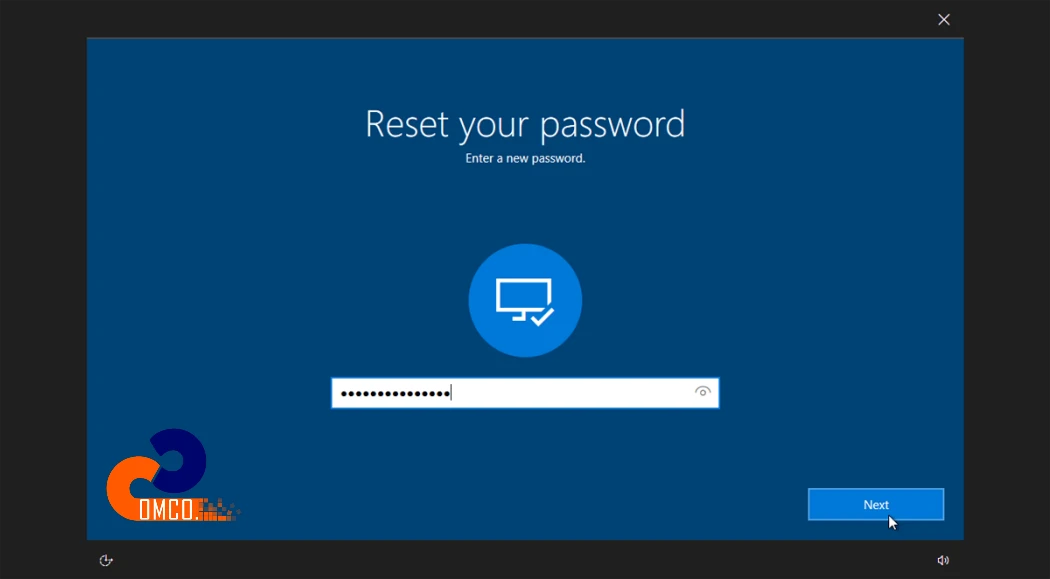
- On the login screen, choose Reset password and follow prompts to set a new password.
3. Use Command Prompt in Safe Mode
If no administrative account is accessible, boot into Safe Mode and use Command Prompt to reset the password.
- Restart and enter Safe Mode.
- Open Command Prompt and perform the password reset steps.
4. Reset with third‑party tools
When other methods fail, tools like Ophcrack or Offline NT Password & Registry Editor can be used.
- Prepare tools on another system and create a bootable disk.
- Boot the locked system from the disk and follow tool instructions.
Note Third‑party tools require familiarity with boot processes and BIOS settings. Seek professional help if unsure.
Recover password for Microsoft account
If you forgot your Microsoft account password, recover it via Microsoft’s official site. The account is linked to services like email and online storage.
Microsoft account password recovery steps
- Go to the Microsoft password recovery page.
- Choose an option: I forgot my password or I can’t sign in.
- Enter your email, phone number, or username.
- Choose a verification method and enter the code.
- Enter and confirm a new password.
Important note
- If you don’t have access to the registered email or phone, select I don’t have these and answer security questions.
Change password in Windows
If you still have access to your account, you can change the password from Windows settings. This works for both Local and Microsoft accounts.
Steps for Windows 10 and 11
Go to Settings, Accounts, Sign‑in options, and under Password choose Change, then follow the prompts.
Change password in Windows 7
In Windows 7, use the Control Panel to change the password. You must have access to the account or be logged in with an Administrator account.
Key points for Windows 7
- If the current password is fully forgotten, this method may not work; use other recovery methods.
- Some systems have the Administrator account disabled by default; enabling it improperly can raise security concerns.
- In organizational networks, password changes may be restricted by Domain Policy.
Note: In work environments, changing Windows 7 passwords should be performed under network support to avoid account lockouts or network resource access issues.
Conclusion
Forgetting a Windows password can be challenging, but with appropriate methods, recovery or change is feasible. Using built‑in Windows tools, Microsoft accounts, a password reset disk, and other approaches helps restore system access while maintaining security through proper password management practices.
برای ارزیابی پایداری، امنیت و نگهداری این زیرساخت، راهنمای پشتیبانی شبکه را نیز مطالعه کنید.