A simple guide to customizing the Windows 11 Start menu: visual steps
Step-by-step guide to personalizing the Windows 11 Start menu, including moving the Start button, managing tiles, using Quick Settings, and changing color and background.
خلاصه تخصصی مقاله
Step-by-step guide to personalizing the Windows 11 Start menu, including moving the Start button, managing tiles, using Quick Settings, and changing color and background.
موضوعات اصلی: پشتیبانی شبکه، کنید، منوی، استارت، انتخاب، رنگ
1. Move Start to left or right on the screen
Windows 11 allows moving the Start menu from the center of the taskbar to either side to align with your preference.
Why is moving Start useful?
- Faster accessfor users accustomed to a left-aligned Start, moving it can speed up access to apps.
- Compatibility with toolssome desktop management tools or themes rely on a left-aligned Start.
- Personal preferencesome users prefer a different layout and symmetry.
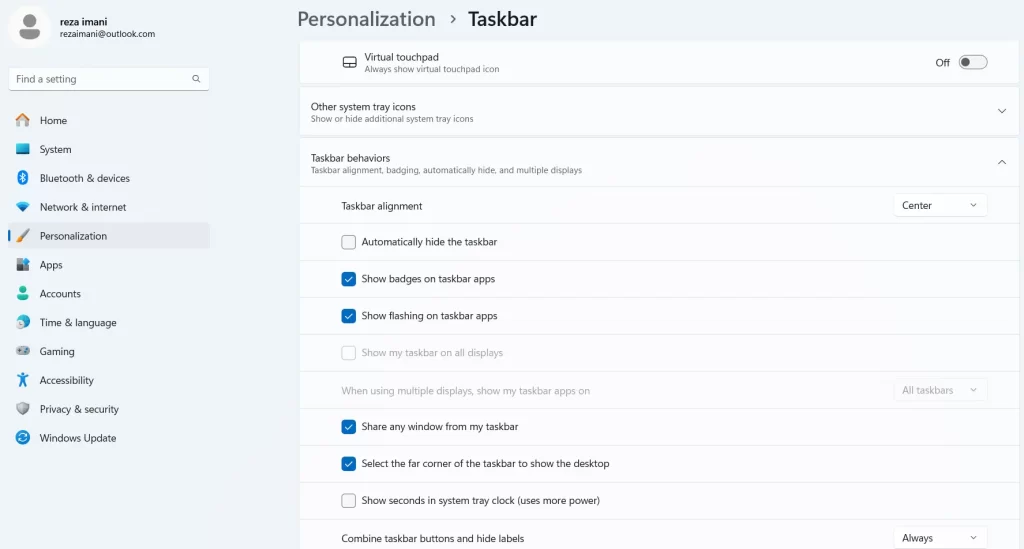
Steps to move Start to left or right
- Open Taskbar settings
- Right-click the taskbar and select Taskbar settings.
- Taskbar alignment options
- In Taskbar settings, go to Taskbar behaviors and find Taskbar alignment.
- Choose your layout
- Use the dropdown beside Taskbar alignment to choose Left or Center.
- Save and apply
- Choosing Left moves Start to the left; changes take effect immediately.
2. Add or remove tiles from the Start menu
The Windows 11 Start Menu lets you add or remove tiles that are shortcuts to apps and folders for quick access. Manage tiles to organize Start according to your needs.
Why tile management matters?
- Faster accessAccess frequently used apps directly from Start.
- Better organizationRemove unnecessary tiles to keep Start clean and efficient.
- Personalized appearanceRearrange and resize tiles to reflect your style.
How to add tiles?
- Open All apps
- Open Start and go to All apps to view installed programs.
- Pin to Start
- Right-click a program and choose Pin to Start to add a tile.
- Organize tiles
- Drag tiles to arrange and resize them using the Resize option.
How to remove tiles?
- Right-click the tile
- Choose Unpin from Start to remove it from Start.
- Note
- The program remains in the system and can be accessed from All apps.
3. Use Quick Settings
Quick Settings provides quick access to common controls such as Wi‑Fi, volume, Bluetooth, and brightness from the bottom-right of the taskbar.
Why Quick Settings matters?
- Immediate accessChange common settings with a click.
- Streamlined routinesAdjust settings without opening full settings menus.
- CustomizationModify which controls appear for faster access.
How to use Quick Settings?
- Open Quick Settings
- Click the network, sound, or battery icon or press Windows + A.
- Manage settings
- Adjust items like Wi‑Fi, Bluetooth, Battery saver, Brightness, and Volume.
- Customize Quick Settings
- Use the edit icon to add/remove items and reorder them for quick access.
4. Change Start color
Windows 11 allows changing Start color to match your theme. A cohesive color scheme enhances the overall feel of the OS.
Why change Start color?
- User experience customizationTailor the look to your preference.
- Theme alignmentCoordinate Start color with desktop and other UI elements.
- Visual impactColor choices can influence mood and clarity.
How to change Start color?
- Open Settings
- Click Start and choose Settings, then go to Colors.
- Select color mode
- Choose Light, Dark, or Custom. If Custom, set Accent color manually for Start and taskbar.
- Apply choices
- Changes apply automatically and can be adjusted anytime.
5. Change Start background
You can customize the Start background with an image or color to align with your taste, enriching the look and feel of Windows.
How to change Start background?
- Open Settings
- Go to Start > Settings > Personalization.
- Background section
- Choose Background to modify overall Windows background and select an image or color for Start.
- Choose image or color
- Picture, Solid color, or Slideshow options are available with display settings for placement.
- Configure display
- Set how the image appears (fill, fit, stretch, center, etc.).
- Apply changes
- Changes apply immediately and can be adjusted as needed.
برای ارزیابی پایداری، امنیت و نگهداری این زیرساخت، راهنمای پشتیبانی شبکه را نیز مطالعه کنید.