5 Practical Steps to Protect Sensitive Information in Windows
As cyber threats grow and internet use expands, protecting personal data on Windows becomes essential. This guide presents five practical steps to improve data security.
خلاصه تخصصی مقاله
As cyber threats grow and internet use expands, protecting personal data on Windows becomes essential. This guide presents five practical steps to improve data security.
موضوعات اصلی: Windows، data، security، Settings، password، Use
With technology advancing and increasing internet usage, protecting personal information on computers has become more important. Cyber threats such as viruses, malware, and phishing attacks are rising daily, so users should adopt effective protection methods. Windows 11 provides features and tools to help users strengthen system security and protect sensitive data from threats.
1. Use a strong password for Windows security
A strong password is one of the primary defenses for personal information. It should be long and complex, mixing upper and lower case letters, numbers, and symbols to reduce the risk of guessing and unauthorized access.
Key tips for creating a strong password
- Password length – at least 12 characters.
- Character variety – use uppercase, lowercase, numbers, and symbols (e.g., @, #, $).
- Avoid personal information – do not use name, birthdate, or other personal data.
- Regular password changes – change passwords periodically and avoid reusing old ones.
Steps to set a strong password in Windows 11
- Access account settings
- Go to Settings.
- Click Accounts.
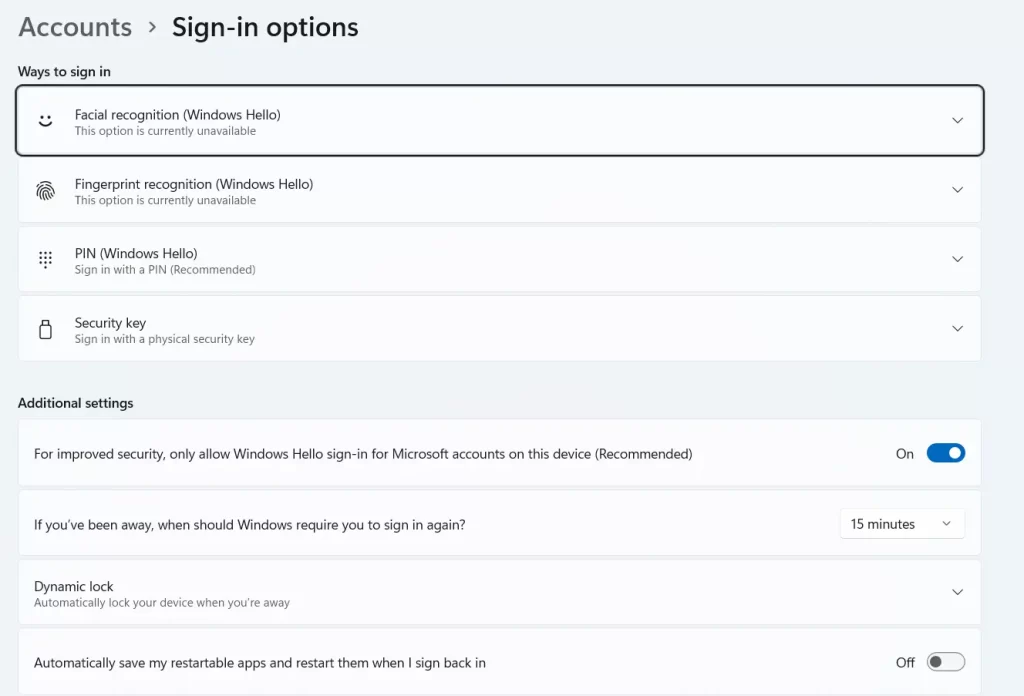
- Select Sign-in options.
- Change your password
- Click Password.
- Enter your current password.
- Enter and confirm a new strong password.
- Enable additional security options
- In Sign-in options, enable additional security such as PIN or Windows Hello.
2. Install and update antivirus software to protect information
Windows Defender (now Microsoft Defender) is the built‑in antivirus for Windows 11, enabled by default and protecting the system against viruses, malware, and other cyber threats. It offers regular updates and advanced features to secure the system.
Steps to install and update
- Enable Windows Defender
- It is enabled by default; ensure protections are on by going to Settings → Update & Security → Windows Security and Virus & threat protection.
- Run the first scan
- Go to Virus & threat protection and click Quick scan; for a deeper scan, open Scan options and select Full scan.
- Update Windows Defender
- Updates usually occur via Windows Update. Go to Settings → Update & Security → Windows Update and Check for updates.
Additional tips
- Schedule regular scans and customize timing as needed.
- Ensure Real-Time Protection is enabled.
- Monitor suspicious activity; enable Controlled folder access to protect important folders.
3. Regular data backups
Regular data backups are essential for protecting personal and business data. Backups allow you to recover data after events such as hardware failures, cyberattacks, or human error.
Backup methods in Windows 11
- Using File History
- Enable File History - Settings → Update & Security → Backup → Add a drive; choose an external drive.
- Configure File History - More options, select files/folders to back up, and set the backup schedule.
- Using OneDrive for cloud backup
- Set up OneDrive - Open OneDrive and sign in; move files/folders to the OneDrive folder.
- Enable Backup Sync - In OneDrive Settings → Backup → Manage backup; select Desktop, Documents, and Pictures to sync.
Tips
- Schedule backups regularly, ideally daily or weekly.
- Use an external drive for local backups.
- Cloud backups enable access to data from any location or device.
4. Use encryption for files and folders
Encryption protects sensitive data by storing it in an encoded form accessible only with the encryption key.
Steps to encrypt files and folders in Windows 11
- Select file or folder - right-click, choose Properties.
- Open advanced attributes - in General tab, click Advanced.
- Enable encryption - check Encrypt contents to secure data and click OK.
- Apply changes - click Apply; if a folder is selected, choose whether to apply to the folder only or to all files and subfolders.
Tips
- Keep a backup of the encryption key to recover data if password is forgotten.
- Use encryption tools like BitLocker or VeraCrypt for advanced protection.
- Note: Some encryption features may be limited on Home editions; use Pro/Enterprise or third‑party tools.
5. Use a firewall for data protection
Firewalls control and monitor network traffic to prevent unauthorized access to the system.
Steps to activate and configure firewall in Windows 11
- Access firewall settings - Settings → Privacy & Security → Windows Security → Firewall & network protection.
- Enable firewall - Ensure firewall is enabled for Domain, Private, and Public networks.
- Advanced settings - Access advanced settings; manage inbound and outbound rules and create new rules as needed.
Tips
- Allow only trusted apps through the firewall.
- Regularly monitor network traffic for suspicious activity.
- Consider using additional third‑party firewalls if needed.
برای ارزیابی پایداری، امنیت و نگهداری این زیرساخت، راهنمای پشتیبانی شبکه را نیز مطالعه کنید.