A comprehensive guide to solving Windows 11 update failures
This guide provides a step-by-step analysis of common causes for Windows 11 update failures and proven methods to fix them to keep your system up to date and secure.
خلاصه تخصصی مقاله
This guide provides a step-by-step analysis of common causes for Windows 11 update failures and proven methods to fix them to keep your system up to date and secure.
موضوعات اصلی: update، Windows، system، updates، files، Install
A comprehensive guide to resolving Windows 11 update issues
Windows 11 updates are not just cosmetic changes; they include security patches, bug fixes, performance improvements, and new features that directly affect system security and speed. However, many users face issues such as Windows Update not proceeding, being stuck at Download or Install, Update errors, and hardware incompatibilities. If left unresolved, these problems can expose the system to security risks or reduce performance.
This guide covers the most common causes and provides tried‑and‑true steps to fix Windows 11 update problems. If you need deeper analysis, you can seek network support for more precise troubleshooting.
This article helps you to:
- Identify common causes of Windows 11 update failures quickly
- Fix Update errors such as 0x80070002, 0x800f0922, 0x80240034
- Repair corrupted system files
- Reset Windows Update services
- Ultimately install Windows updates without errors
If your Windows 11 update is paused or won’t start, follow the following tested and practical methods.
Why does Windows 11 not update?
Windows 11 typically fails to update due to one of the following:
- Internet connectivity issue
Weak connection, VPN, proxy, or interruptions to Microsoft servers. - Lack of free space on the C drive
Insufficient space can stop download or installation. - Issues with the Windows Update service
Corrupted SoftwareDistribution folder or stopped services. - A/V or firewall interference
Some security software blocks update files. - Corrupted system files
Run SFC and DISM to repair - Hardware incompatibility
TPM 2.0 issues, old CPU, or old BIOS.
1. Check system internet connection
Stable internet access is essential for downloading and installing Windows updates. Without it, the update process may stall.
Guidance to check internet connectivity
- Check network connections
Ensure Ethernet cables or Wi‑Fi are properly connected and stable. - Reset modem/router
Power cycling the modem or router can fix connectivity problems. - Test internet speed
Use speed test tools to verify your connection speed for downloading updates.
Network settings
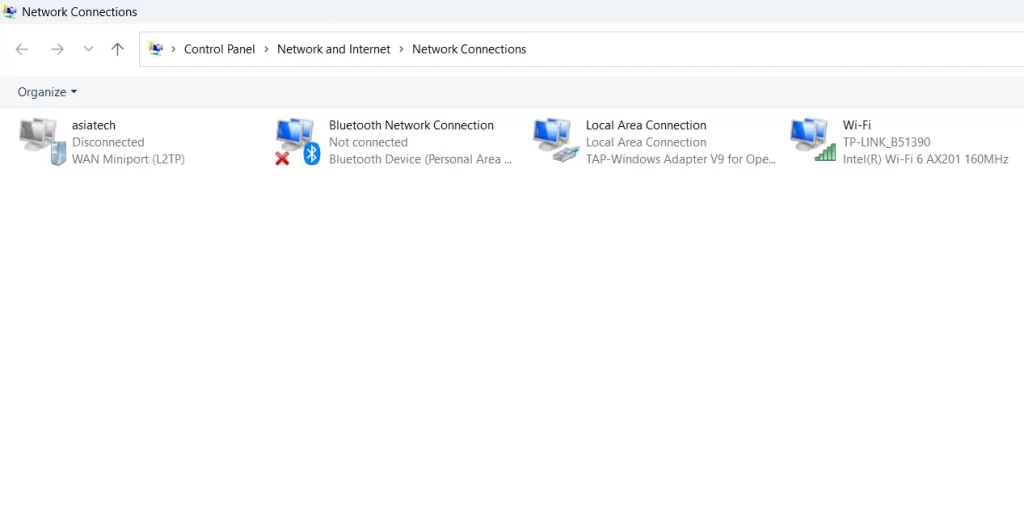
- Network adapter settings
- Open Control Panel > Network and Sharing Center > Change adapter settings and ensure the network adapter is enabled.
- Network troubleshooting
- Go to Settings > Network & Internet > Status and run the Network troubleshooter to identify and fix issues.
2. Check system storage space
Having sufficient disk space is essential for download and installation of Windows updates. Lack of space can cause update failure.
Guidance to check storage space
- Check disk space
- Open Settings > System > Storage and review free space on the main drive (usually C:).
- Clean temporary files
- Run Disk Cleanup. Choose drive C: and delete temporary files and logs.
- Clear system files
- In Disk Cleanup, click “Clean up system files” and select drive C: again to remove system files such as Windows Update Cleanup.
- Remove unnecessary apps and files
- Go to Settings > Apps > Apps & features and uninstall unneeded apps; delete large, unused files.
- Move files to other drives or external storage
- Move large files such as videos, photos, and documents to another drive or external storage to free space.
Storage tools and cleanup
- Storage Sense
- Enable Storage Sense in Settings > System > Storage > Storage Sense to automatically remove temporary and unnecessary files.
- Third‑party cleaning tools
- Use tools like CCleaner to remove more temporary files securely.
3. Reset Windows Update services
Windows Update services manage download and install of updates. Sometimes they encounter issues that prevent updates from functioning correctly. Resetting these services can fix many problems.
Steps to reset Windows Update services
- Open Command Prompt with administrator rights
- Type cmd in the search bar and choose Run as administrator.
- Stop Windows Update services
- In Command Prompt, run commands to stop Windows Update and BITS services: net stop wuauserv; net stop bits
- Clear update cache
- Navigate to C:\Windows\SoftwareDistribution and delete all files and folders.
- Restart the update services
- Run: net start wuauserv; net start bits
4. Check and repair system files
Corrupted or missing system files can cause many Windows issues, including update failures. Use SFC and DISM to identify and repair them.
Steps to check and repair system files
- Open Command Prompt with administrator rights
- Type cmd in the search bar and choose Run as administrator.
- Run SFC (System File Checker)
- Enter the command: sfc /scannow
DISM /Online /Cleanup-Image /RestoreHealth
5. Download and install updates manually
Importance of manual download and installation
Manual updates can help resolve issues with automatic updates, especially when the system cannot download or install updates automatically.
Offline Windows 11 update method
Offline updates are used when Windows Update is not functioning, downloads stop, or internet speed is slow. In this method, download the update file directly from the Microsoft Update Catalog and install it manually. This is one of the most reliable ways to fix Windows Update errors.
- Step 1 — identify the KB number of the required update
To install offline, you need to know which update applies to your system.
How to identify the KB number
Settings → Windows Update → Update history
Look in the “Quality Updates” or “Cumulative Updates” sections
Numbers like KB5039212 or KB5040442
Each update has a KB number that uniquely identifies it.
- Step 2 — go to Microsoft Update Catalog
Visit the Microsoft Update Catalog site and enter the KB number in the search box.
- Step 3 — download the correct update version
Several versions appear in the results: Windows 11 x64, Windows 11 ARM64, and server editions (not needed). Download only the version that matches your system architecture.
To check architecture: Settings → System → About → System Type (x64 or ARM64).
- Step 4 — run the .msu file
After downloading, double-click the .msu file. Windows will extract, validate compatibility, and install the update. The system may restart several times during installation.
- Step 5 — offline installation with DISM
If the MSU file does not install, extract it and open Command Prompt (Admin) and run: DISM /Online /Cleanup-Image /RestoreHealth
- Step 6 — verify a successful installation
After reboot, Settings → Windows Update → Update history. If installed correctly, the update appears under “Successfully Installed.”
- Offline update tips
- If several updates are pending, install only the latest Cumulative Update (it includes previous ones).
- If you see 0x800f0922 or 0x80073712 errors, use DISM.
- Disable antivirus temporarily during install.
- Prefer to have around 5 GB free space on C before installation.
6. Update in Safe Mode
Updating Windows 11 in Safe Mode can prevent interference from third‑party software and issues that may occur in normal mode.
- Enter Safe Mode
- Go to Settings > Update & Security > Recovery.
- In Advanced startup, click Restart now.
- After reboot, select Troubleshoot > Advanced options > Startup Settings > Restart.
- On the Startup Settings screen, press F4 to enter Safe Mode.
- Install Windows updates
- In Safe Mode, go to Settings > Update & Security > Windows Update.
- Click Check for updates and install available updates.
Common error codes and how to fix
During Windows 11 updates, you may encounter various errors. The following table lists common error codes with corresponding fixes.
| Error Code | Cause | Fix |
|---|---|---|
| 0x80070002 | Update files not fully downloaded. | Run Windows Update Troubleshooter Delete the SoftwareDistribution folder under C:\Windows |
| 0x800f0922 | Connection issues to Microsoft servers or blocked by firewall | Temporarily disable firewall and VPN Check internet connection and update servers |
| 0x80240034 | Update incomplete and paused mid‑process | Run Windows Update Troubleshooter Clear temp files and restart |
| 0xc1900101 | Driver incompatibility with the new version | Update all drivers (especially graphics and network) and free space on C |
| 0x800705b4 | Timeout during update process due to slow system | Temporarily disable antivirus Check CPU and RAM usage in Task Manager |
| 0x80073712 | Some system files related to updates are corrupted | Run DISM /Online /Cleanup-Image /RestoreHealth in Command Prompt (Admin) |
| 0x8024402F | Loss of connection to Microsoft Update server | Check internet speed and DNS settings Restart router/modem |
Why Windows 11 won’t update?
Connection issues, insufficient storage, or Windows Update service problems can cause this.
How can I reset Windows Update services?
Use the commands net stop wuauserv and net stop bits to stop the services, then delete cache files and restart with net start wuauserv and net start bits.
How can I manually install Windows 11 updates?
Visit the Microsoft Update Catalog, search and download the required update, and run the downloaded .msu file.
How do I clear the Windows Update cache?
Navigate to C:\Windows\SoftwareDistribution\Download and delete all files and folders there.
برای ارزیابی پایداری، امنیت و نگهداری این زیرساخت، راهنمای پشتیبانی شبکه را نیز مطالعه کنید.