A Comprehensive Guide to Optimizing Windows 11 Performance
This guide covers practical methods to improve Windows 11 speed, including updates, cleanup, startup management, memory optimization, and hardware considerations.
خلاصه تخصصی مقاله
This guide covers practical methods to improve Windows 11 speed, including updates, cleanup, startup management, memory optimization, and hardware considerations.
موضوعات اصلی: performance، can، system، Windows، speed، Power
Introduction
Windows 11, the latest version of Microsoft's operating system, introduces new features and capabilities. Like any OS, optimizing and speeding it up can improve the user experience and overall system performance. Many users encounter slowdowns and performance issues that can impact productivity and satisfaction. This guide explores practical methods and tips to speed up and optimize Windows 11 so users can make the most of this OS. If you need guidance, you can consider online computer services.
Ways to Speed Up Windows 11
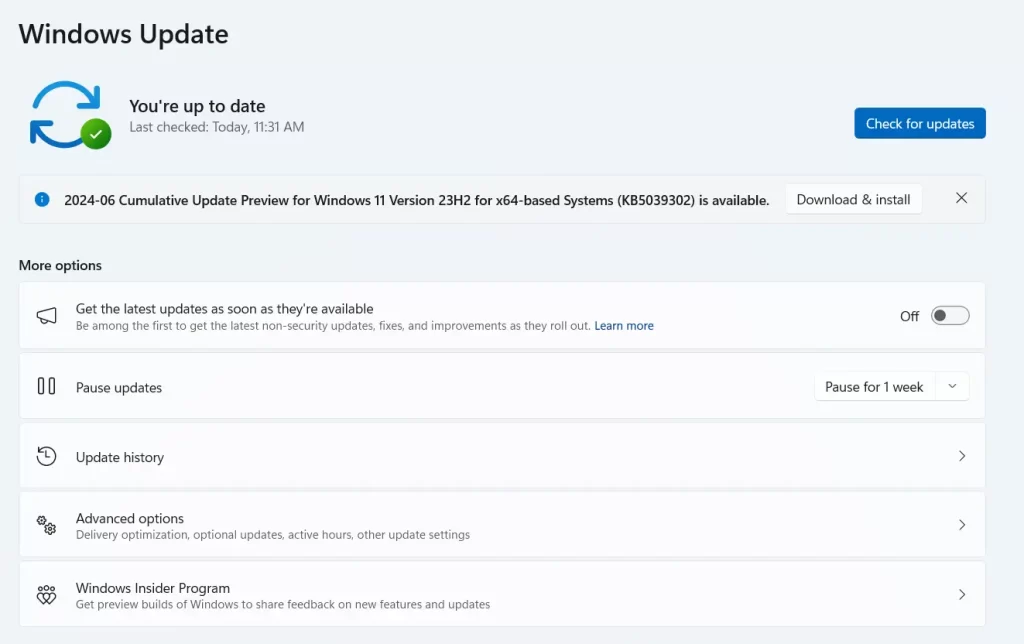
1. Update Windows 11
Ensure Windows is up to date to benefit from performance and security improvements. In Windows Settings > Windows Update, you can check for and install updates. Regular updates help fix bugs and performance issues and improve overall system performance.
2. Clean up temporary files and cache
Use Disk Cleanup to remove temporary files and cache to free disk space and speed up the system. This helps identify and remove unnecessary files. Regular cleanup makes the system run more efficiently.
3. Manage startup programs
Control programs that run automatically at startup to speed up boot time. Use Task Manager > Startup to disable nonessential programs. Reducing startup items leads to faster system startup.
4. Increase disk space
Delete unnecessary files and programs to free disk space. Removing large files and rarely used apps can free space for the OS and essential applications, boosting performance.
5. Optimize virtual memory
Fine-tune virtual memory so the system can use disk space as extra RAM. Manually adjusting virtual memory in system settings can improve performance. Virtual memory helps when more space is needed to run applications by using disk space.
6. Disable visual effects
Disable nonessential visual effects like animations and shadows to improve performance. In System settings, turn off unnecessary visuals to free resources and speed up the system.
7. Use system optimization tools
Tools like CCleaner can help clean the registry and optimize performance. Regular use helps identify and fix junk files, corrupted registries, and other issues.
8. Update drivers
Keep hardware drivers up to date to ensure better compatibility and performance. Visit the hardware manufacturer’s site to download latest drivers; updated drivers often include performance improvements and bug fixes.
9. Advanced settings (Power Settings)
Set power plan to High Performance for maximum speed. In Control Panel > Power Options, enable High Performance to better utilize system resources, improving speed and efficiency.
10. Remove unnecessary programs
Identify and uninstall programs you rarely use to free system resources. In Control Panel > Programs and Features, remove unnecessary apps to free disk space and resources for essential software.
11. Scan and remove malware
Run antivirus scans to detect and remove malware to improve performance and security. Regular scans help maintain a faster and safer system.
12. Hardware upgrade
Upgrading RAM and using SSDs instead of HDDs can noticeably boost speed. More RAM allows running heavier applications, and SSDs improve boot and application load times.
Laptop-specific performance considerations
Laptops often face more performance challenges than desktops, especially with Windows 11 that demands more hardware resources. Common slowdowns arise from power management settings, traditional HDDs, high RAM usage by background apps, and unsuitable CPU settings. The following tips address optimizing Windows 11 on laptops.
Key tips include disabling Battery Saver during heavy workloads, setting Power Plan to High Performance, and carefully managing background apps. Using an SSD instead of an HDD can also significantly improve laptop speed.
1. Disable Battery Saver during heavy workloads
Windows 11 includes Battery Saver to reduce energy use on battery-powered laptops. It can throttle CPU power and limit background processes, impacting heavy workloads such as graphics applications, video editing, or games.
- Open Settings.
- Click System and select Power & Battery.
- In Battery Saver, choose Turn Off Now.
- Ensure Battery Saver does not activate automatically when battery is low.
Note: On battery power, Battery Saver can be useful, but when plugged in, disabling it can allow maximum CPU performance.
2. Increase CPU performance with High Performance in Power Options
Windows 11 defaults to Balanced energy usage, which can limit CPU performance. This can cause processing delays in some apps and lower frame rates in games. Changing to High Performance or Best Performance can improve speed.
How to switch to High Performance
- Open Control Panel.
- Go to Power Options.
- Choose Show Additional Plans.
- Enable High Performance.
Note: Some laptops may not expose this option. It can be enabled via Command Prompt (run as Administrator) and a command to activate Ultimate Performance.
3. Optimize RAM usage by disabling unnecessary background apps
Windows 11 handles memory management better than previous versions, but many background apps still consume RAM and can slow systems with limited memory (4–8 GB).
How to disable unnecessary background apps
- Open Task Manager with Ctrl + Shift + Esc.
- Go to Processes and identify high-memory apps.
- End Task for unnecessary apps.
How to prevent apps from starting automatically
- Open Task Manager.
- Go to Startup tab.
- Disable apps that do not need to start automatically.
Note: Apps like Discord, Skype, Adobe Creative Cloud, and Steam often run in the background; disabling them can significantly improve laptop performance.
4. Use an SSD instead of HDD for speed on older laptops
One of the main reasons for Windows 11 slowdown on laptops is the use of traditional HDDs. Windows 11 requires more processing power, and slow HDDs increase boot time and slow down app loading.
Benefits of SSD over HDD
- Faster boot times
- Faster app loading
- Lower data transfer latency
How to move Windows from HDD to SSD without data loss
- Purchase an SSD with at least 256GB capacity.
- Clone the system from HDD to SSD using a cloning tool.
- Disconnect the HDD and boot from the SSD.
- Expect a noticeable speed improvement.
Note: Upgrading to an SSD is an effective solution for laptops with 8 GB RAM or less.
Conclusion
Speed improvements and performance optimization for Windows 11 can deliver a better user experience and significantly enhance system efficiency. Implementing the methods and tips described helps address common slowdowns and lets users benefit from Windows 11 capabilities.
Regular system updates, cleaning temporary files, managing startup programs, and virtual memory optimization are among the steps that support better performance. Driver updates and hardware upgrades also play important roles in boosting Windows 11 speed.
Given the interdependence of security and performance, regular malware scans are crucial. By applying these strategies, users can enjoy a faster, more stable, and more efficient system.
برای ارزیابی پایداری، امنیت و نگهداری این زیرساخت، راهنمای پشتیبانی شبکه را نیز مطالعه کنید.