Windows 11 installation and its hardware requirements
This article explains the hardware requirements for installing Windows 11, how to check device compatibility, and practical approaches to address common limitations.
خلاصه تخصصی مقاله
This article explains the hardware requirements for installing Windows 11, how to check device compatibility, and practical approaches to address common limitations.
موضوعات اصلی: پشتیبانی شبکه، ویندوز، نصب، کنید، سازگاری، استفاده
Windows 11 installation and its hardware requirements
Many users encounter that Windows 11 imposes specific hardware prerequisites, making standard installation on older devices non-trivial. This article outlines the main requirements, how to check compatibility, and practical ways to address common limitations.
Since the introduction of Windows 11, compatibility issues have arisen due to requirements such as TPM 2.0, Secure Boot, and UEFI. While some older systems may not be eligible for a straightforward installation, there are ways to enable or work around these requirements. This article covers the essentials, approaches to bypass limitations, and alternative installation paths.
To assess compatibility, various tools exist. Typically a system health checker can indicate whether your device can run Windows 11. If you see a message stating that your system doesn’t meet the requirements, your device may be incompatible with the updated version. In some cases additional adjustments in UEFI can lead to a successful installation.
Hardware requirements for Windows 11
Windows 11 hardware prerequisites
Microsoft lists stricter hardware requirements than before. If your system does not meet these specs, installation may fail with errors.
Table of hardware requirements
| Hardware Component | Minimum Requirements |
|---|---|
| CPU | At least 1 GHz, 2 cores or more, 64-bit, compatible with supported CPU list |
| RAM | At least 4 GB |
| Storage | At least 64 GB of free space |
| Firmware | UEFI with Secure Boot |
| TPM | Version 2.0 |
| GPU | DirectX 12 compatible with WDDM 2.0 driver |
| Display | 9-inch display or larger, 720p or higher resolution |
| Internet connection | Required for updates and Microsoft account activation |
To determine if your device is compatible, you can run the Health Check tool to see if it meets Windows 11 requirements. If you see compatibility issues, there are usually steps to address some limitations, and sometimes changes in UEFI can help.
Ways to install Windows 11 on older systems
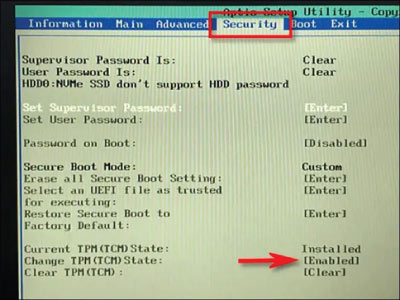
Enable TPM 2.0: Windows 11 requires TPM to run. If TPM is disabled, access the UEFI settings and enable TPM 2.0, then re-run the compatibility check.
Enable Secure Boot: In the UEFI settings, go to the Boot section and enable Secure Boot, then save and restart.
Convert MBR to GPT: Windows 11 installs on GPT partitions. To convert without data loss, you can use MBR2GPT tools and run the appropriate command in an administrator CMD. Before doing so, back up important data.
Check and enable UEFI: Some systems only use BIOS. If your hardware supports UEFI, switch the Boot Mode to UEFI in BIOS settings. Otherwise, installation may not be possible.
Registry bypass: If your system lacks TPM 2.0 or Secure Boot, you can bypass the restrictions during installation via registry edits. (General guidance without step-by-step details)
Using modified ISO images: Some modified Windows 11 ISO releases remove TPM and Secure Boot restrictions. This method is not official and carries security risks; use only if absolutely necessary.
Cost of Windows 11 installation
In general, upgrading to Windows 11 is free if a genuine Windows 10 license is already active on the device. The version may come with bugs and limitations. An alternative to testing is to install Windows 11 inside a virtual machine (VMware or VirtualBox) to avoid risking data on the main system. For confidence in the installation process, consider consulting with technical experts.
Frequently asked questions
- Why won’t Windows 11 install on my system? Because certain hardware prerequisites such as TPM 2.0, Secure Boot, and UEFI must be present and enabled.
- Can Windows 11 be installed without TPM? Yes, through registry bypass or using modified ISO images; but these are unofficial and pose security risks.
- How can I check if my system is compatible with Windows 11? Use the official Windows compatibility tool to see which hardware is not compatible.
- What issues might arise when installing Windows 11 on an old system? Driver incompatibilities, reduced performance, bugs, and blue screen errors may occur.
- Is Windows 11 free? Upgrading from genuine Windows 10 is free; if you use older versions, you may need to upgrade to Windows 10 first.
- What is the best way to test Windows 11 on an old system? Installing Windows 11 in a virtual machine (VMware or VirtualBox) to avoid risking your main system.
برای ارزیابی پایداری، امنیت و نگهداری این زیرساخت، راهنمای پشتیبانی شبکه را نیز مطالعه کنید.