Resolving Shared Printer Installation Issue on Network: Error 0x0000011b
An overview of the 0x0000011b error encountered when installing a shared printer on a Windows network, covering causes and practical fixes involving RPC security, registry adjustments, and patch management.
خلاصه تخصصی مقاله
An overview of the 0x0000011b error encountered when installing a shared printer on a Windows network, covering causes and practical fixes involving RPC security, registry adjustments, and patch management.
موضوعات اصلی: printer، security، RPC، Registry، client، patches
The shared printer installation issue with error 0x0000011b is a common problem for Windows users and typically manifests at the final stage of connecting to the printer. This error arose following Windows security updates addressing the PrintNightmare vulnerability and changes to RPC security, which can disrupt client-server printer communication on some networks.
Causes of the error 0x0000011b and printer not found on the network
Common causes include:
- New security patches (PrintNightmare) that alter authentication in RPC protocols.
- Mandatory RPC security level (RPC Auth Level Privacy) enforcement in client-server communications.
- Registry mismatch, especially RpcAuthnLevelPrivacyEnabled key.
- Print Spooler service disruption due to updates or repeated connection attempts.
- Access restrictions and network permissions such as firewall rules and Password Protected Sharing.
- Version mismatches between client and server or patch levels.
New security patches (PrintNightmare)
These patches target the PrintNightmare vulnerability and modify authentication protocols to prevent exploits, which can cause printers to disconnect in certain networks.
Mandatory RPC security level (RPC Auth Level Privacy)
Post-update, Windows raises the security level for RPC communications. Servers typically require clients to use the highest encryption level; without proper registry settings, printer installation may fail.
Registry mismatch
To manage the new security level, a registry key named RpcAuthnLevelPrivacyEnabled is required. If this key or its value is missing or incorrect, security protocols can clash and installation can fail.
Print Spooler service disruption
Updates or repeated network connection attempts can crash or stop the Print Spooler service. Without a functioning service, printer discovery over the network is not possible.
Access restrictions and network permissions
In workgroups or networks without proper permissions, you may encounter:
- Firewall blocks RPC traffic.
- Guest access or client recognition issues on the server.
- Password Protected Sharing blocking client requests.
Version and patch mismatches
Incompatibilities between client and server OS versions or patch levels can break the handshaking process. Usually, aligning patches or registry adjustments on the server resolves it.
How to fix the shared printer installation issue
To address error 0x0000011b, follow these steps in order. This guide covers both server-side (printer host) and client-side (machine connecting to the printer) configurations.
Step 1: Registry edit (server system)
This approach is often effective because it resolves RPC interference without removing patches.
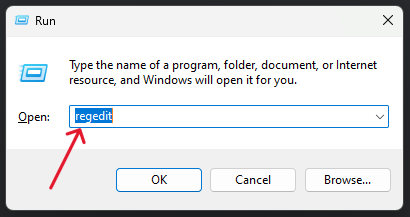
Press Win + R, type regedit, and press Enter.
Navigate to: HKEY_LOCAL_MACHINE\SYSTEM\CurrentControlSet\Control\Print
Right-click on the right pane, choose New > DWORD (32-bit) Value.
Name the value RpcAuthnLevelPrivacyEnabled and set its Data to 0. Click OK and close Registry Editor.
Step 2: Restart Print Spooler service (on both systems)
Open Run, type services.msc. Find Print Spooler, choose Restart. Perform this on both server and client.
Step 3: Manage security patches (on the client system)
If registry changes do not help, patches on the client may be causing the interference.
3a) Remove recent patches
Go to Control Panel > Programs and Features, View installed updates. Locate recent security updates (e.g., KBXXXX) and Uninstall. Reboot after removal.
3b) Windows update
Go to Settings > Windows Update and Check for updates to install any corrective patches.
Step 4: Add printer manually using Local Port
On the client, go to Control Panel > Devices and Printers. Click Add a printer and choose The printer that I want isn’t listed. Select Add a local printer or network printer with manual settings and click Next. Choose Create a new port and set Port type to Local Port. Enter the printer path as: \\Server-Name\\Printer-Share-Name. Continue the wizard to install the driver. This method typically bypasses RPC security layers.
Summary
Resolving error 0x0000011b hinges on aligning security protocols between the client and server. Creating RpcAuthnLevelPrivacyEnabled = 0 on the host registry and restarting the Print Spooler often suffices. If server access is unavailable, removing recent patches or using Local Port on the client can be effective. These steps reduce RPC hardening to enable printer sharing, while preserving essential updates elsewhere.
Frequently Asked Questions
What does 0x0000011b mean?
Windows is blocking the installation process due to new security requirements in RPC/Print Spooler, causing the connection to the shared printer to fail.
Is the issue on the server or the client?
Usually both can play a role. Patches on one or both systems can cause mismatch, but registry adjustment on the server resolves most cases.
What is the best definitive fix?
Create a DWORD named RpcAuthnLevelPrivacyEnabled with value 0 at the path HKEY_LOCAL_MACHINE\SYSTEM\CurrentControlSet\Control\Print and restart the Print Spooler (a system reboot is recommended).
Does this registry change reduce system security?
Yes, to some extent it lowers RPC hardening to allow devices to connect. If your network is public or untrusted, apply this only on a trusted internal network.
To assess stability and security of the infrastructure, also review the network support guidance.
برای ارزیابی پایداری، امنیت و نگهداری این زیرساخت، راهنمای پشتیبانی شبکه را نیز مطالعه کنید.