Configuring Windows Firewall to Enable Remote Desktop
Configuring firewall rules for Remote Desktop is essential to provide secure and reliable remote access. This guide explains how to open the default port and important security considerations.
خلاصه تخصصی مقاله
Configuring firewall rules for Remote Desktop is essential to provide secure and reliable remote access. This guide explains how to open the default port and important security considerations.
موضوعات اصلی: port، Remote، firewall، Desktop، you، system
Configuring the firewall for Remote Desktop is one of the most important steps to provide access to a system from a distance. Often, even when the Remote Desktop service is enabled on the system, firewall restrictions can prevent the connection. Therefore, reviewing and correctly configuring firewall rules plays a key role in creating a stable and secure connection.
Since the firewall is one of the main layers of network security, any changes should be made carefully to maintain security while enabling remote access. Understanding how to manage these settings helps users and system administrators enable Remote Desktop without compromising security.
Steps to open the Remote Desktop port in Windows Firewall
To use Remote Desktop in Windows, access to the service must be enabled in the firewall. Otherwise you may encounter connection issues due to the firewall. Remote Desktop uses port 3389 by default, so having this port open in the Windows Firewall is necessary for the connection.
Step 1: Access Windows Firewall settings
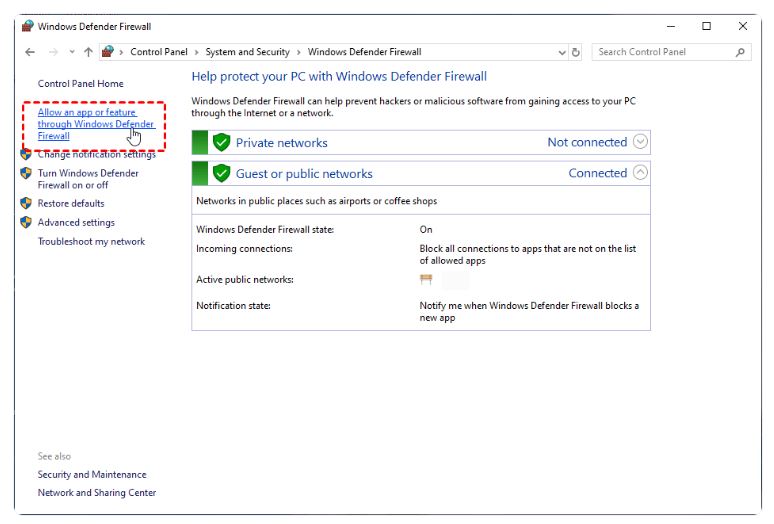
First open Control Panel and go to System and Security. Then select Windows Defender Firewall. In the left panel click Allow an app or feature through Windows Defender Firewall to display the list of apps allowed through the firewall.
Step 2: Enable Remote Desktop access
In the opened page click Change settings to allow changes. Then find Remote Desktop in the list of apps. To configure the firewall for mstsc, enable this option.
If you want to use Remote Desktop only on a private network, enable Private. If you also want to allow connections from public networks or the internet, you can enable Public.
By enabling these options, you are effectively opening port 3389 in the Windows Firewall, allowing the system to accept Remote Desktop connection requests.
Step 3: Open Remote Desktop port on router
If you plan to connect from outside the internal network via the internet, opening the port in the Windows firewall is not enough. In this case you must configure the port on the router's firewall as well so inbound requests from the internet are directed to the target system. This process is usually called Port Forwarding or Port Triggering.
The router interface may differ, but the general steps are similar in most routers.
Open your browser and enter the router's IP address into the address bar. Press Enter to display the login page. If you don't know the address, you can find it in the router manual or in the system's network settings.
In this step you should enter the port information. First choose a name for this service. Then select TCP/UDP or Both as the Service Type. Enter 3389 as the port and write the IP address of the target machine in the IP Address field.
Finally click Apply or Save to save the settings. In some routers you may need to restart the router for changes to take effect.
After completing these steps, if other network and firewall settings are correct, you should be able to connect to the system via Internet using Remote Desktop. For security, use strong passwords and restrict access to specific IPs if possible.
Step 4: Optional change of the default Remote Desktop port
Since port 3389 is the default for RDP, many network attacks target this port. To enhance security, some administrators choose to change the port.
To do this, press Win + R, type regedit, and open Registry Editor. Navigate to
HKEY_LOCAL_MACHINE\System\CurrentControlSet\Control\Terminal Server\WinStations\RDP-Tcp
In the right pane, locate PortNumber and double-click it. Change its value and set Base to Decimal. After entering the new port, save the settings.
Finally you may need to restart the router or computer for changes to take effect.
Check if the remote port is open
If you still cannot connect after configuring, verify that the port is actually open. Open Windows PowerShell (Admin) and run
Test-NetConnection 192.168.1.2 -Port 3389
Replace 192.168.1.2 with the destination system IP. If TcpTestSucceeded shows True, the Remote Desktop port is open and the target is ready to receive connections. If False, the port may be closed by the firewall or network/router settings may be incorrect.
This method is often used to diagnose whether the issue lies with Windows Firewall, network settings, or router port forwarding.
You can also use online port-check tools to verify whether the Remote Desktop port is reachable from outside the network. This is relevant when connecting over the Internet and there may be issues with router or port forwarding configurations.
Test Remote Desktop connection
After configuring Remote Desktop and opening the ports, test the connection to ensure everything works correctly. A simple method is to use the Remote Desktop Connection tool. Run mstsc, enter the destination IP or hostname, and if configured correctly, the login prompt will appear and you can sign in with a valid user.
Another method is to test port accessibility using PowerShell. Run Test-NetConnection as described to verify the port status.
For ongoing reliability and security, consult the network support guide for maintenance and security practices.
Security considerations for opening the RDP port
Opening the Remote Desktop port can make access easier, but without proper security measures it may expose the system to attacks. Key security practices include using strong passwords, restricting access to specified IPs, using a VPN to connect to the internal network, and optionally changing the default port.
Limit remote access to authorized users and regularly review login logs to respond quickly to suspicious activity.
Conclusion
Firewall configurations for Remote Desktop are among the essential steps to ensure stable and secure remote access. If the Remote Desktop rules in the firewall are not correctly set, connecting to the target system may be impossible even with the RDP service enabled.
This guide explained how to enable remote access in Windows Firewall, open the default RDP port, and verify connectivity, along with important security considerations to prevent misuse.
With correct configurations and port checks, Remote Desktop can be used securely for managing and accessing systems over a LAN or via the Internet.
Frequently Asked Questions
Why can't I connect even though Remote Desktop is enabled?
This is usually related to network or firewall settings. Even if Remote Desktop is enabled on the system, the connection will fail if the port is blocked by the Windows Firewall or the router. Incorrect IP, target system offline, or lack of user permissions can also cause the issue.
Should only port 3389 be opened in the firewall?
By default, yes. Remote Desktop uses port 3389, and having this port open is typically sufficient. If the system administrator changed the default RDP port, the new port must be opened in the firewall and network settings.
How can I tell if the port is open in the firewall?
You can test with PowerShell using Test-NetConnection or use online port-check tools. If the test succeeds, the port is open and the service is responding.
Is there a need to adjust the firewall on the modem?
For internal LAN access only, usually not. If you plan to access via the Internet, you should configure Port Forwarding on the modem to direct inbound requests to the destination system.
Consult the network support guide for reliability, security, and maintenance of this infrastructure.
برای ارزیابی پایداری، امنیت و نگهداری این زیرساخت، راهنمای پشتیبانی شبکه را نیز مطالعه کنید.