What is Remote Desktop Software? Introduction and Comparison of Top Remote Desktop Tools
This article explains the concept of remote desktop software, introduces ten leading tools, and discusses security considerations to help you choose a suitable solution.
خلاصه تخصصی مقاله
This article explains the concept of remote desktop software, introduces ten leading tools, and discusses security considerations to help you choose a suitable solution.
موضوعات اصلی: Remote، Desktop، access، security، advantage، use
What is Remote Desktop Software?
Remote desktop software enables you to connect to another computer or server remotely, view its screen, and perform management tasks without being physically present. These tools are commonly used for network support, system administration, remote training, and server control, and they help reduce response times and downtime.
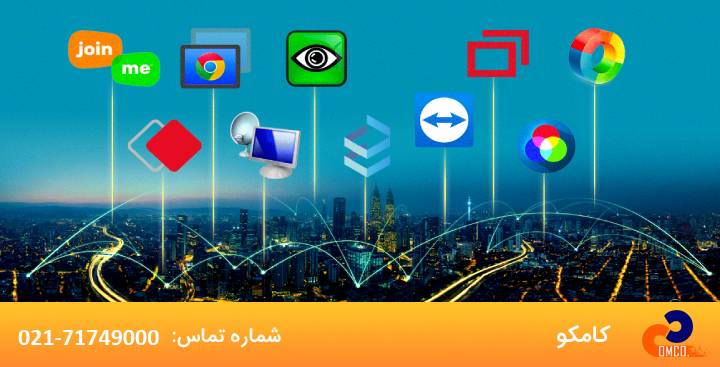
Ten remote desktop tools you should know
Remote Desktop Connection
This built-in Windows tool allows access to other devices. To enable, go to Windows settings and turn on Remote Desktop. To connect, enter the destination device information. It is a secure and stable option for Windows-centric environments.
- Key advantage: no additional software installation required
- Major limitation: using public Internet without VPN can be risky
- Ideal use: server management and admin access
TeamViewer
One of the most popular remote desktop tools with cross‑platform support, suitable for remote training, quick support, and temporary access.
- Advantage: quick connection without fixed IP or port forwarding
- Limitation: free version for personal use; commercial use requires licensing
Ammyy
A lightweight and free tool with basic screen sharing capabilities.
- Advantage: very lightweight
- Limitation: fewer features compared to commercial rivals
UltraVNC
Professional tool for viewing multiple desktops on one machine, file sharing between machines, and fast chat.
- Advantage: supports multiple displays
- Limitation: more complex to configure
WebEx Free
Free remote tool focused on screen sharing with multi‑platform support.
- Advantage: free and multi‑platform
- Limitation: fewer advanced features than paid versions
JoinMe
A remote tool that operates in a group context; members join a group rather than logging in with credentials.
- Advantage: group-based access
- Limitation: file sharing requires group invitation
AnyDesk
Fast and lightweight with broad platform support. Free version is limited; paid version required for business use.
- Advantage: high speed and low resource usage
- Limitation: free version not suitable for prolonged commercial use
Zoho Assist
Strong tool for professional remote support and session management with enterprise features and 256‑bit encryption.
- Advantage: comprehensive session management and security
- Limitation: mainly aimed at organizational use
SimpleHelp
Simple and efficient with a clean UX ideal for small to medium support teams.
- Advantage: quick onboarding and easy to use
- Limitation: fewer Enterprise features
Goverlan Reach
IT management platform for remote access to multiple machines, designed for professional admins needing unattended access.
- Advantage: simultaneous multi‑system management
- Limitation: higher technical knowledge requirement
Comparison table for remote desktop tools
| Tool | Features | Pros | Cons |
|---|---|---|---|
| TeamViewer | Cross‑platform support, file transfer, chat | Easy UI, free personal use | Higher cost for business use, requires reliable Internet |
| AnyDesk | High speed, customizable | Free version is usable, fast and stable | Free version has limitations, some features are complex |
| Chrome Remote Desktop | Integrated with Chrome browser, easy install | Free, simple and user-friendly | Limited features, requires Chrome browser |
| Microsoft Remote Desktop | Integrated with Windows, strong security | High security and stability, free | Limited to Windows and macOS, may require complex setup |
| Splashtop | Supports multiple devices, high quality | Good image quality, affordable | Free version has limits, needs account |
| LogMeIn | File transfer, multi‑device support | Rich enterprise features, strong support | High cost, complex UI |
Security considerations for remote desktop software
Using remote desktop tools poses security risks; the following practices help improve security when using these tools.
- Use strong passwords
Weak passwords are easily compromised. Use strong, unique passwords for each connection.
- Enable MFA
Enable multi‑factor authentication to prevent unauthorized access, typically via SMS, authenticator app, or email.
- Avoid public networks
Avoid connecting over public networks; if necessary, use a VPN.
- Regular software and OS updates
Keep remote desktop software and OS up to date to mitigate known vulnerabilities.
- Limit access rights
Restrict access to only essential systems and users.
- Security alerts
Choose tools that can alert you to suspicious activity.
- Logging
Enable activity logging to review suspicious remote actions.
- Use official releases
Avoid unofficial sources; trusted vendors offer better security guarantees.
- Disable remote access when not needed
Turn off remote access if it is not being used.
- User training
Educate users about security risks and secure usage practices, including recognizing phishing and malicious links.
Final takeaway
Remote desktop tools play a key role in quick support, system management, and reducing operational downtime. The right choice depends on the network environment, the number of systems, user access levels, and security needs. When combined with proper security configurations and network management, these tools can save time and costs while preventing costly downtime.
FAQ: Remote Desktop Software
- 1. What factors matter when choosing remote desktop software?
Key factors include OS compatibility, security, connection speed and stability, extra features (like file transfer and chat), and cost. Define your needs and select accordingly.
- 2. How can the security of remote desktop connections be ensured?
Choose tools with strong encryption (SSL/TLS), enable MFA, use strong passwords, and restrict access to specific IPs. Keep software updated.
- 3. Which remote desktop tool is suitable for small businesses?
For small businesses, options like TeamViewer and AnyDesk are recommended, offering free versions with reasonable features and affordable paid plans. Also consider proper access control and security.
برای ارزیابی پایداری، امنیت و نگهداری این زیرساخت، راهنمای پشتیبانی شبکه را نیز مطالعه کنید.